


Standard Google searches are designed for the masses, but for recruiters, sales professionals, and researchers, they often fall short. Generic queries bury valuable leads and candidate profiles under irrelevant results, making precision targeting nearly impossible. This is where Google X-ray searching, powered by Boolean logic, transforms a simple search bar into a surgical tool. This technique allows you to bypass a website's native search function and use Google's powerful indexing to peer directly inside specific domains like LinkedIn, GitHub, or company directories.
By combining specific operators with Boolean commands (like AND, OR, NOT), you can construct queries that act like a digital metal detector, surfacing exactly what you need. This guide provides a comprehensive catalogue of ready-to-use google xray search boolean examples, designed to uncover hidden candidate pools, identify key decision-makers, and gather competitive intelligence that remains invisible to conventional searches. The principles of advanced keyword targeting are not limited to Google; with the right expertise, similar strategies apply when you are searching Facebook for keywords to find specific posts or profiles.
In this listicle, we will dissect eight powerful search string categories, from basic site-specific queries to advanced commands that analyze page titles and archived content. Each example includes a strategic breakdown, customization tips, and common pitfalls to avoid. You will learn how to build precise, effective search strings from scratch, giving you a distinct advantage in your field. While these manual methods are incredibly effective, it's also important to recognize that modern tools like ProfileSpider can automate the extraction process, turning these complex searches into a one-click workflow for building lead and candidate lists.
This article is part of our broader guide to lead scraping. If you want the complete end-to-end workflow—including lead sources, scraping methods, enrichment, data quality, CRM activation, and compliance—see: Lead Scraping Guide: How to Scrape, Enrich, and Convert Leads at Scale.
1. The Recruiter's Toolkit - Finding LinkedIn Profiles by Location and Title
This is the quintessential X-ray search, the foundational technique for anyone in talent acquisition, sales, or market research. It’s the most direct way to bypass LinkedIn's own search limitations and use Google’s powerful indexing to pinpoint specific professional profiles. By combining the site: operator with targeted keywords and Boolean logic, you can create a highly specific candidate or lead pipeline directly from Google search results.
This method works by telling Google to only search within a specific part of a website. For LinkedIn, site:linkedin.com/in/ is the magic command that restricts results to public user profiles, filtering out company pages, job postings, and other noise.
To build these queries faster, try our LinkedIn Search Builder to generate LinkedIn X-ray searches without manually piecing together every operator.
Strategic Breakdown & Search Strings
Let's dissect some powerful google xray search boolean examples tailored for this purpose.
Find Software Engineers in New York:
site:linkedin.com/in/ intitle:"Software Engineer" ("New York" OR "NYC")Find SaaS Sales Leaders (and exclude irrelevant results):
site:linkedin.com/in/ ("Sales Director" OR "VP of Sales") "SaaS" -intitle:profiles -intitle:jobsFind Fintech Product Managers in London:
site:linkedin.com/in/ "Product Manager" AND "Fintech" AND "London"
Analysis and Insights
The power of this technique lies in its precise layering of commands.
- Operator Focus: The
intitle:operator is crucial here. Since LinkedIn profiles often have the person's job title in the HTML title tag of the page,intitle:"Software Engineer"is more accurate than just searching for the keywords on the page. - Exclusion is Key: The
-intitle:profilesand-intitle:jobsoperators are vital for cleaning up your results. They prevent Google from showing you generic "Top Software Engineer profiles" listicles or job ads, focusing your search on individual people. - Keyword Precision: Using
AND(or simply including the terms) ensures all conditions are met.“Product Manager” AND “Fintech”guarantees the profile contains both keywords, making it highly relevant.
Actionable Takeaway: Always start with the core
site:linkedin.com/in/operator. Then, layer your job titles using("Title A" OR "Title B")to broaden your search for similar roles. Finally, add industry keywords and location details to narrow the results. Once you have a page of results, a no-code tool like ProfileSpider can extract all the profiles into a clean spreadsheet in one click, saving you hours of manual copy-pasting.
2. Inurl and Inanchor Boolean Operators for Hidden Pages
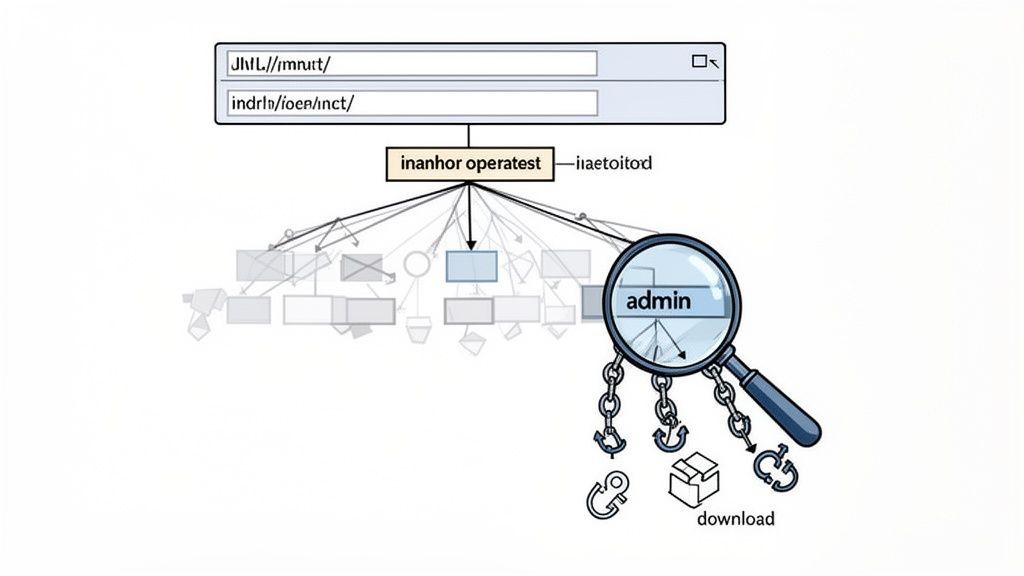
This technique moves beyond searching page content and into the very architecture of a website. It's a favorite among sales and marketing researchers for mapping out a site's structure, uncovering hidden resources, or finding specific types of pages that aren't always linked in a site's main navigation. By using the inurl: and inanchor: operators, you command Google to look for keywords within a page's URL or in the text used to link to that page.
This method effectively reveals a website's digital footprint, showing you pages that a site owner might not intend for general discovery. For recruiters, this can mean finding employee directories or resource portals. For sales, it could uncover partner login pages or specific product documentation that reveals key details about a company's technology stack.
If you’re starting from target accounts instead of people, our Company Finder can help you generate company-focused searches before you dig deeper with operators like inurl:.
Strategic Breakdown & Search Strings
Let's explore some powerful google xray search boolean examples that leverage these specialized operators.
Find all PDF resources on a company's website:
site:example.com filetype:pdf
Note: A more direct way than usinginurl:for this specific task.Locate "contact us" or "about us" pages across multiple university sites:
site:.edu (inurl:contact OR inurl:about)Discover potential employee or member directories:
site:company.com (inurl:staff OR inurl:team OR inurl:directory)Find login portals that may indicate a type of software used:
inurl:login "Powered by *"
Analysis and Insights
The strategic value of inurl: and inanchor: comes from their ability to find pages based on their purpose, not just their content.
- Operator Focus: The
inurl:operator is incredibly potent for finding pages that follow a specific naming convention, such asinurl:careersorinurl:blog. This is often more reliable than just searching for the word "careers" on a site, which could appear anywhere. Theinanchor:operator finds pages that are consistently linked with specific text, like "Sign In," revealing every sign-in page on a site. - Exclusion is Key: You can refine your search by removing unwanted results. For example,
site:example.com inurl:blog -inurl:authorwould show blog pages but exclude author-specific archive pages, helping you focus on primary content. - Keyword Precision: Combining these operators with
site:is the most common use case.site:targetcompany.com inurl:resourcesis a targeted command to find a company's resource hub, which might contain valuable case studies, white papers, or client lists.
Actionable Takeaway: Use
inurl:to hunt for pages based on standardized URL patterns like/team,/about,/contact, or/resources. Combine this with thesite:operator to map out a target organization's website structure. This approach is excellent for competitive intelligence and discovering non-public-facing information hubs.
3. Intitle and Allintitle Operators for Page Metadata
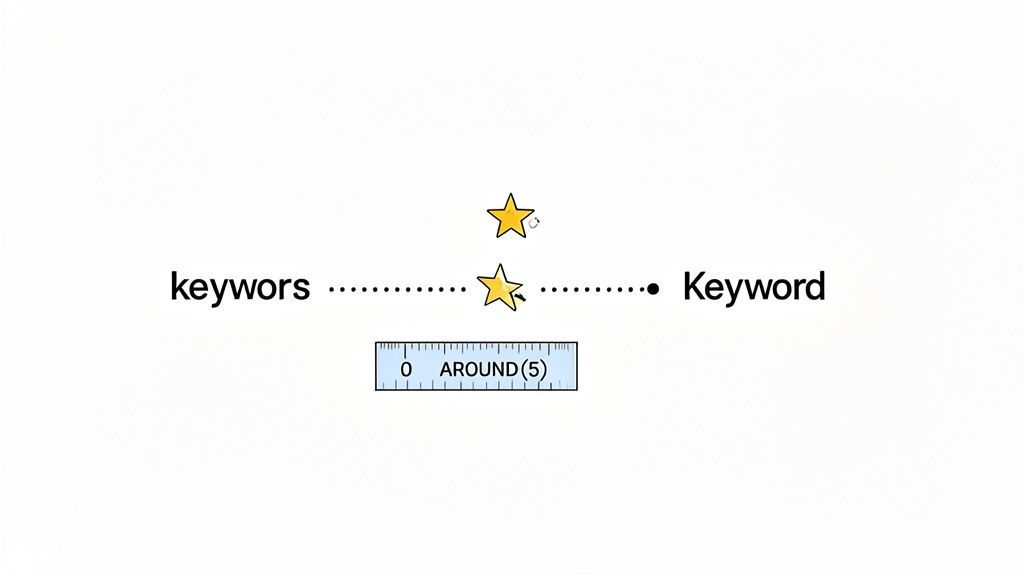
While site: restricts your search to a specific domain, the intitle: and allintitle: operators zero in on a page's most important piece of metadata: its HTML title tag. This is the text that appears in your browser tab and as the main blue link in Google search results. Targeting the title allows you to find pages dedicated to a specific topic, rather than pages that merely mention it somewhere in the body content.
This technique is a scalpel for researchers, allowing them to uncover specific types of pages, documents, or directories that are often unintentionally indexed by Google. For recruiters and sales pros, it's a powerful way to find lists, directories, and resource pages that aggregate valuable contacts or company information.
Strategic Breakdown & Search Strings
Let’s explore a few google xray search boolean examples that leverage the power of title tag searching.
Find Open Directories with Specific File Types:
intitle:"index of" "parent directory" (xls OR pdf OR docx)Discover Admin Login Pages (for security audits):
allintitle:admin login -jobs -careersLocate Configuration Files on GitHub:
site:github.com intitle:config filetype:ymlFind Speaker Lists from Past Conferences (for lead generation):
allintitle:"speakers 2023" "marketing conference"
Analysis and Insights
The precision of intitle: and allintitle: comes from focusing on the page's primary declared purpose.
- Operator Focus: The key distinction is between
intitle:(finds pages with a specific word in the title) andallintitle:(finds pages with all specified words in the title, in any order). Useallintitle:for highly targeted queries where every term is non-negotiable, likeallintitle:admin login. - Exclusion is Key: As seen with
-jobs, excluding common irrelevant terms is crucial. Many companies have pages titled "Admin Jobs," so filtering these out focuses the search on actual login portals. - Combining for Power: The real magic happens when you combine these operators.
site:github.com intitle:config filetype:ymlis a layered command that first restricts the search to GitHub, then looks for "config" in the title, and finally filters for YAML files, providing hyper-specific results.
Actionable Takeaway: Use
intitle:"index of"to uncover publicly accessible file directories, which are often treasure troves of reports, contact lists, and internal documents. Combine this withfiletype:operators (filetype:pdf,filetype:xlsx) to hunt for specific kinds of information. This is a classic researcher's tactic for finding primary source data.
4. The Digital Archaeologist - Using Cache and Info for Archived Content
While most X-ray searching focuses on finding current, live information, sometimes the most valuable data is what used to be there. This technique is the digital equivalent of archaeology, allowing researchers and competitive analysts to peer into the recent past. By leveraging Google's cache: and info: operators, you can access stored versions of web pages and gather metadata, even if the live page has been changed or taken down.
This method instructs Google to show you its most recently indexed snapshot of a page (cache:) or a summary of all the information it has about a specific URL (info:). It's a powerful way to find recently removed job descriptions, see how a competitor's messaging has evolved, or find details on a profile that has since been edited.
Strategic Breakdown & Search Strings
Let's explore some insightful google xray search boolean examples using these specialized operators.
View a Cached Version of a Careers Page:
cache:apple.com/careers/Find All Information Google Has on a Competitor's Domain:
info:microsoft.comInvestigate a Specific, Now-Defunct Job Posting:
cache:company.com/jobs/senior-data-analyst-12345Analyze Cached LinkedIn Profiles (When Publicly Available):
cache:linkedin.com/in/username
Analysis and Insights
The strategic value of these operators comes from their ability to reveal historical context and hidden data.
- Operator Focus: The
cache:operator is your time machine. It’s perfect for situations where a page has been updated and you need to see the previous version, such as a company removing a key executive from their "About Us" page or a candidate editing their LinkedIn profile after an interview. - Information Gathering: The
info:operator is a fantastic reconnaissance tool. It provides a quick dashboard of what Google knows, including links to the site's cached version, similar pages, and pages that link to the URL, offering a 360-degree view of a domain's digital footprint. - Limitations and Timing: The key limitation is the cache date. Google's snapshot might be hours, days, or weeks old. Always check the timestamp at the top of the cached page to understand the context of the information you're viewing.
Actionable Takeaway: Use the
cache:operator to recover information from recently changed or deleted pages, like a job description that was just taken down. Pair this with theinfo:operator for competitive analysis to quickly see how Google indexes a rival's domain and find related pages you might not have known about.
5. Proximity and Wildcard Operators for Flexible Matching
Moving beyond exact keyword matching, advanced Google X-ray searches leverage flexibility to uncover hidden gems. Proximity and wildcard operators are the secret weapons for researchers and strategists who need to find concepts and phrases that don't follow a rigid structure. They allow you to search for ideas and relationships between words, rather than just static text strings.
The wildcard (*) acts as a placeholder for any word, while the proximity operator (AROUND(X)) finds keywords that appear within a specific number of words of each other. This combination is incredibly powerful for discovering variations in phrasing, connecting related but not directly linked concepts, and casting a wider, more intelligent net across a specific website.
Strategic Breakdown & Search Strings
Let's explore some nuanced google xray search boolean examples that showcase these flexible operators.
Find discussions about Bitcoin price predictions on Reddit:
site:reddit.com "bitcoin" AROUND(3) "price"Uncover articles about implementing different security protocols:
"security * implementation" filetype:pdfFind resumes that mention experience managing teams or projects:
site:some.university.edu/resumes intitle:resume "managed a * of"
Analysis and Insights
The strategic value here comes from anticipating how people naturally write and speak, rather than forcing a perfect keyword match.
- Operator Focus:
AROUND(X)is the star player.“bitcoin” AROUND(3) “price”will find phrases like "Bitcoin's price is rising," "price of Bitcoin," and "what is the Bitcoin price," which a simple quoted search would miss. The number in the parentheses dictates the maximum word distance, allowing you to control the search's precision. - Wildcard Utility: The asterisk (
*) is perfect for capturing unknown variables."managed a * of"is a brilliant way for recruiters to find resumes that mention "managed a team of," "managed a group of," or "managed a portfolio of" without having to guess every possible variation. - Combining for Power: Using these operators together or with others like
site:andfiletype:creates highly specific yet flexible queries. Searching for"security * implementation"within PDFs (filetype:pdf) is an effective way to locate official whitepapers, guides, or academic papers on the topic.
Actionable Takeaway: Use the
AROUND(X)operator when you are looking for a relationship between two keywords, not just their presence. Start with a low number likeAROUND(3)for high relevance and increase it to broaden your search. Use the wildcard (*) inside a quoted phrase to find common sentence structures with variable words.
6. Exclude Operators (Minus and NOT) for Result Refinement
More often than not, the quality of your search results is defined by what you remove, not just what you find. This is where the exclusion operators, the minus sign (-) and the NOT command, become indispensable. They act as precision scalpels, allowing you to surgically remove irrelevant results, noisy domains, and common keywords that muddy the waters, ensuring you only see the most relevant content.
This technique is fundamental to refining any X-ray search. After performing an initial broad search, you can identify recurring unwanted patterns (like job boards, price-focused articles, or forums) and systematically eliminate them. This iterative process of exclusion is what transforms a good search into a great one, saving you significant time and effort in filtering through unwanted links.
Strategic Breakdown & Search Strings
Let's explore some powerful google xray search boolean examples that leverage exclusion for superior results.
Find Machine Learning content but exclude academic papers:
"machine learning" (tutorial OR guide) -filetype:pdf -site:.eduFind Python programming help but exclude Stack Overflow:
"python" "data validation" tutorial -site:stackoverflow.comFind recipes while removing a visually dominant (and often unhelpful) site:
"vegan chili" recipe -site:pinterest.com
Analysis and Insights
The strategic power of exclusion lies in its ability to narrow your focus with surgical precision.
- Operator Focus: The minus sign (
-) must be placed directly before the term or operator you wish to exclude, with no space (e.g.,-site:pinterest.com). This tells Google to completely ignore any page that contains the specified element. - Exclusion is Key: In the machine learning example,
-filetype:pdfand-site:.eduare critical for filtering out dense, academic research papers that aren't practical tutorials. This shifts the results toward more accessible, hands-on learning content. - Keyword Precision: Excluding a dominant but low-value site like Pinterest in a recipe search is a common and highly effective tactic. It removes pages that are often just images linking to other sites, bringing the actual recipe content to the forefront.
Actionable Takeaway: Begin with a broad search to identify your primary keywords. Then, scan the first page of results for common, irrelevant themes or websites. Use the
-operator to progressively remove this noise, re-running the search after each exclusion to refine your results until you have a clean, highly relevant list.
7. Exact Match and Phrase Search for Precision Targeting
This is the bedrock operator for precision in Google X-ray searches. Using quotation marks (" ") to enclose a phrase transforms your query from a loose collection of keywords into a single, non-negotiable search term. It instructs Google to find pages containing those exact words, in that specific order, with nothing in between. This simple command is essential for eliminating ambiguity and homing in on precise information, from technical error codes to specific job titles.
Without phrase matching, a search for senior product manager could return pages mentioning "senior" in one paragraph and "product manager" in another. By using "senior product manager", you guarantee that the results feature this exact title, dramatically increasing the relevance and quality of your search results. It's the difference between a broad suggestion and a direct hit.
Strategic Breakdown & Search Strings
Let's explore some powerful google xray search boolean examples that leverage the power of exact matching.
Find Specific Technical Documentation:
"database connection refused" filetype:pdf site:stackoverflow.comLocate Resumes with a Specific Certification:
("CV" OR "resume") "Project Management Professional" filetype:pdfFind Company Bios Mentioning a Specific Slogan:
site:about.company.com "innovating the future of fintech"
Analysis and Insights
The strategic value of phrase matching lies in its ability to enforce strict criteria on Google's search algorithm.
- Operator Focus: The quotation marks (
" ") are the core operator. They are most powerful when searching for multi-word phrases where the order and completeness are critical, such as job titles, technical jargon, specific quotes, or brand names. - Exclusion is Key: While not an exclusion operator itself, using phrase search implicitly excludes variations. Searching for
"Vice President of Marketing"will not return results for "Marketing Vice President," making it a tool for intentional exclusion. - Keyword Precision: This is the ultimate tool for precision. It's invaluable when searching for unique identifiers, error messages like
"error 404 not found", or proprietary software names that might otherwise be broken down into common words.
Actionable Takeaway: Use quotation marks whenever the sequence and integrity of a multi-word phrase are critical to your search. Combine it with the
site:operator to find specific terminology within a target website or use it withfiletype:to locate official documents, resumes, or reports containing exact phrases. This is your go-to tool for high-fidelity searches.
8. Related and Link Operators for Relationship Discovery
This technique moves beyond finding individual profiles and into the realm of strategic intelligence and competitive analysis. Using Google’s related: and link: operators allows you to map out digital ecosystems, discover influential players, and understand how information flows across the web. For marketers, researchers, and business strategists, it’s like having a compass to navigate the competitive landscape.
The related: operator finds websites similar to one you already know, while the link: operator (though less reliable now) was designed to find pages that link to a specific URL. By leveraging these, you can uncover new lead sources, identify key industry publications, and perform robust competitive benchmarking directly within Google's search results.
Strategic Breakdown & Search Strings
Let's explore some powerful google xray search boolean examples for uncovering website relationships.
Find Competitors and Alternatives to a Key Platform:
related:github.comDiscover Industry Blogs and News Sites Linking to a Major Player:
link:hubspot.com inurl:blog "marketing"Identify Internal Linking Patterns within a Competitor's Website:
site:salesforce.com link:salesforce.com/solutions/
Analysis and Insights
The power here comes from understanding the relationships between websites, not just the content on them.
- Operator Focus: The
related:operator is a goldmine for competitive analysis. If you're targeting customers of a specific SaaS tool,related:will instantly give you a list of that tool's main competitors, expanding your target account list in seconds. - Contextual Discovery: Combining
link:with other operators likeinurl:blogor keywords like "review" or "case study" helps you find not just who is linking, but why. This is invaluable for identifying potential content partners, PR opportunities, or discovering what people are saying about a brand. - Strategic Application: Use
related:to find similar types of websites. For example,related:angel.cocan help recruiters find other startup job boards and community platforms, whilerelated:g2.comcan show marketers other software review directories to target.
Actionable Takeaway: Start with the
related:operator to build a map of your market. List your top five competitors and run arelated:search for each one to uncover secondary and tertiary competitors you may have missed. Use this expanded list to fuel your sales prospecting, marketing campaigns, and strategic planning.
8-Point Comparison: Google X-Ray Boolean Search Examples
| Technique | Complexity 🔄 | Resources & Skills 💡 | Outcomes ⭐📊 | Speed ⚡ | Ideal Use Cases 📊 |
|---|---|---|---|---|---|
| Site-Specific Boolean Search with Filetype Operator | Low — simple operators | Low — know file extensions; tip: run multiple filetype queries | ⭐⭐⭐ — very precise, high signal | ⚡⚡ — fast discovery | Finding indexed PDFs/XLS/DOC on domains; competitive intel; security audits |
| Inurl and Inanchor Boolean Operators for Hidden Pages | Medium — combine operators & patterns | Medium — understand URL structures; tip: use site: to focus | ⭐⭐⭐ — uncovers hidden/unlinked pages | ⚡ — moderate (requires tuning) | Discovering admin/orphan pages; SEO audits; pen-testing reconnaissance |
| Intitle and Allintitle Operators for Page Metadata | Low — straightforward syntax | Low — target title keywords; tip: use allintitle: for specificity | ⭐⭐⭐ — high topical relevance, low noise | ⚡⚡ — quick, targeted results | Finding directories, indexed configs, topic-specific pages |
| Cache and Info Operators for Archived Content | Low — simple commands | Low — awareness of cache limits; tip: check cache date | ⭐⭐ — useful for snapshots but limited depth | ⚡ — fast when available | Recovering deleted/changed pages; quick site metadata checks |
| Proximity and Wildcard Operators for Flexible Matching | Medium — requires experimentation | Medium — tune AROUND() and *; tip: test distances | ⭐⭐⭐ — flexible matching; variable precision | ⚡ — moderate (iterative testing) | Linguistic patterns, semantic relation discovery, content gap analysis |
| Exclude Operators (Minus and NOT) for Result Refinement | Low — easy to apply | Low — know unwanted terms/sites; tip: start broad then exclude | ⭐⭐⭐ — dramatically reduces noise when used right | ⚡⚡ — fast refinement | Filtering spam/commercial sites; narrowing search results |
| Exact Match and Phrase Search for Precision Targeting | Low — simplest form | Low — need exact phrase; tip: compare with unquoted query | ⭐⭐⭐ — maximum relevance for exact phrases | ⚡⚡ — immediate precise results | Finding quotes, exact error messages, unique identifiers |
| Related and Link Operators for Relationship Discovery | Medium — interpret results + supplement tools | Medium — pair with SEO tools; tip: verify with third-party backlink tools | ⭐⭐ — good for discovery but incomplete | ⚡ — moderate (may need cross-checking) | Competitive benchmarking, backlink reconnaissance, alternative resource discovery |
From Manual Search to Automated Strategy: The Future of Sourcing
Throughout this guide, we've explored the immense power of Google X-ray and Boolean search techniques. You’ve seen how combining operators like site:, inurl:, and filetype: with Boolean logic (AND, OR, NOT) transforms Google from a simple search engine into a precision-guided tool for discovery. From unearthing candidate profiles on LinkedIn to finding niche experts on GitHub and locating key documents within corporate websites, these methods are foundational for modern sourcing and research.
The google xray search boolean examples provided are more than just shortcuts; they are strategic frameworks. They allow you to filter the web's noise, pinpointing exactly the information you need with surgical accuracy. You now possess the keys to unlock hidden talent pools, identify decision-makers, and gather competitive intelligence that others miss. Mastering these commands is no longer optional- it's a core competency for any top-performing recruiter, sales professional, or market researcher.
The Manual Bottleneck: Finding is Only Half the Battle
However, mastering the search is only the first step. You can craft the perfect Boolean string that returns hundreds of ideal LinkedIn profiles or contact pages, but what happens next? This is where the real business challenge begins: the slow, tedious, and error-prone process of manually clicking each link, copying and pasting names, titles, companies, and contact details into a spreadsheet.
This manual data entry drains your most valuable resource: time. It pulls you away from high-impact activities like building relationships, closing deals, and analyzing information. Finding the data is a victory, but the manual effort required to make that data usable often kills productivity and momentum.
The Next Step: From Manual Sourcing to Automated Intelligence
This is precisely where automation becomes a strategic imperative. The true potential of your finely-tuned X-ray searches is only realized when you can instantly capture the results. Imagine running a complex search for "Senior Java Developer" profiles and, with a single click, having all the resulting profiles neatly organized into a structured, import-ready spreadsheet.
This is the power that a tool like ProfileSpider brings to your workflow. It acts as the intelligent automation layer on top of your search expertise, providing a no-code, one-click alternative to manual data collection.
Strategic Insight: Your value isn't in data entry; it's in strategy, outreach, and analysis. ProfileSpider automates the low-value manual work, freeing you to focus on the high-value tasks that drive results. It bridges the critical gap between finding data and using data.
Instead of spending hours on manual extraction, you can:
- Build Targeted Lists in Minutes: Execute your Google X-ray search and let ProfileSpider extract the profile data from the results page instantly.
- Ensure Data Quality and Consistency: Avoid manual typos and formatting errors, creating clean, uniform datasets ready for your CRM or outreach platform.
- Maintain Privacy and Security: Unlike cloud-based tools, ProfileSpider runs locally on your machine, ensuring your sourced lists and search activities remain completely private.
- Scale Your Sourcing Efforts: Run multiple targeted searches and compile comprehensive lists without the manual time investment, dramatically increasing your output.
While your initial focus should be on mastering manual searches, you can also set up systems to monitor new information as it appears online. For those looking to automate their information gathering beyond manual X-ray searches, a comprehensive guide to setting up Google Alerts can help you master another powerful tool for passive monitoring.
The google xray search boolean examples in this article give you the power to find anything. Now, it's time to pair that power with the speed and efficiency of automation. Stop being a data collector and become a data strategist.
Ready to supercharge your sourcing? Try the free version of ProfileSpider today and experience the difference between finding leads and capturing them instantly.