

If your LinkedIn automation suddenly grinds to a halt, you're not alone. It's a frustrating but common experience for sales professionals, recruiters, and marketers. Usually, the issue boils down to just a handful of culprits: recent LinkedIn interface updates that your tool wasn't ready for, invisible activity limits that trigger an account restriction, or simple authentication problems.
Figuring out which one is the problem is the first step to getting your lead generation or sourcing efforts back on track.
Diagnosing Why Your LinkedIn Automation Suddenly Stopped
It’s a familiar story. One day your automation is humming along, generating leads or sourcing candidates, and the next, it's dead in the water. The knee-jerk reaction is to blame the tool, but the real issue is often tied to how LinkedIn itself works.
LinkedIn is constantly tweaking its platform—refining the user interface and updating its algorithms to fight spam. A tiny, seemingly insignificant change to a button's code is all it takes to break an automation tool until its developers can push an update. This cat-and-mouse game is part of the reality of using tools that interact with a live website's front end.
To help you quickly pinpoint the issue, here’s a rundown of the most common problems.
Quick Diagnosis for Failing LinkedIn Automation
This table summarizes the most frequent reasons automation tools fail and the first steps you can take to diagnose the problem.
| Symptom | Potential Cause | What to Check First |
|---|---|---|
| Tool crashes or shows errors | A LinkedIn UI update has broken the tool's selectors. | Check the tool provider's status page or community for known issues. |
| Can't log in | Session expired, 2FA challenge, or incorrect credentials. | Log in to LinkedIn manually in a new browser tab to confirm access. |
| Actions fail without errors | You've hit a daily or weekly activity limit. | Pause all automation for 24-48 hours and then try a single action manually. |
| Low engagement or replies | Possible "shadowban" or your outreach is being flagged. | Review your messaging and activity volume. Try warming up the account. |
Taking a moment to check these basics can save you hours of frustration and help you identify the root cause much faster.
Common Signs of Trouble
Beyond simple software breaks, a few other red flags can signal that your automation is in trouble. You just need to know what to look for.
- Sudden Error Messages: If your tool starts throwing errors like "element not found" or "selector invalid," a LinkedIn UI update is almost certainly the reason. The tool is looking for a button that isn't there anymore.
- Failed Logins: Constantly getting kicked out or seeing authentication failures? Your session cookie might have expired, or a new two-factor authentication prompt is blocking the tool's access.
- Vanishing Connection Requests: If you see the tool sending requests, but they never show up in your "Sent" folder, you’ve likely hit a weekly limit or been put on a temporary restriction by LinkedIn.
- Extremely Low Acceptance Rates: When your connection acceptance rate suddenly tanks, it could be a sign of a "shadowban." This is where LinkedIn's algorithm quietly reduces your account's visibility because it thinks your activity is too aggressive. This is a big reason why Chrome extensions get blocked on LinkedIn, as their behavior is often easy for the platform to detect.
Key Takeaway: The first step is always diagnosis, not panic. Look closely at the specific errors. Is the tool itself failing to click a button, or are the actions going through but getting zero results? The answer points you toward the right solution.
This initial diagnostic check helps you move from guessing to implementing a targeted fix, whether that means updating your software, pausing your campaigns, or rethinking your entire automation strategy.
When your LinkedIn automation suddenly grinds to a halt, it can feel like your entire lead-gen or sourcing engine just stalled out. Don't panic. Most of these issues are common and, more importantly, fixable without needing a technical background.
Let's walk through the usual suspects—from pesky login errors to sudden tool failures—and get you back up and running. Think of this as your practical field guide to debugging your LinkedIn automation.
Handling Authentication and Session Errors
More often than not, the problem is a simple authentication error. This is just a way of saying your tool can't log in to your LinkedIn account anymore.
You'll know this is the culprit if your tool reports a login error or if it just sits there, doing nothing. This usually happens because your session "cookie" expired or LinkedIn decided to throw up a new security check.
Here’s your action plan:
- Log Out and Log Back In Manually: Head over to LinkedIn.com in your browser, properly log out of your account, and then log back in. This simple act creates a fresh, valid session that your tool can usually use.
- Clear Browser Cookies: If that doesn't work, old or corrupted cookies might be causing a problem. Go into your browser settings, find the cookies specifically for LinkedIn, and delete them. Log back into LinkedIn to give your automation tool a completely clean slate.
- Check for Two-Factor Authentication (2FA): If you use 2FA, LinkedIn might be waiting for a verification code that your tool can't handle. A good test is to run your tool with the LinkedIn tab open and visible. If a 2FA prompt pops up, you've found your problem.
Authentication issues are a constant headache, especially if you're juggling multiple accounts. Getting a clean, active session is always the first and most critical troubleshooting step.
What to Do When You Hit Rate Limits
So, your tool looks like it's running, but no connection requests are going out and no messages are being sent. You've likely hit one of LinkedIn's invisible activity limits. The platform has quietly put you in a temporary time-out to curb what it sees as overly aggressive behavior.
When this happens, the single most important thing to do is stop everything. Pushing the tool harder will only raise your risk of a real account restriction.
- Pause All Automation: Shut it all down for at least 24-48 hours.
- Engage Manually: During this cooldown, use LinkedIn like a normal person. Scroll through your feed, like a few posts, and maybe send one or two messages by hand. This activity signals to the algorithm that you're not just a bot.
- Restart Slowly: Once the pause is over, don't just flip the switch back to full power. Start your automation at a slow pace—maybe 10-15 actions per day. If all goes well, you can gradually ramp the volume back up over the next week.
Fixing Broken Tools After a LinkedIn Update
Worked perfectly yesterday, but today it's a mess of errors? The culprit is almost certainly an update to LinkedIn's website. LinkedIn constantly tweaks its code, and these changes can instantly break the "selectors" your automation tool relies on to find buttons and fields on the page.
The fix is typically straightforward: check for a software update from your tool’s provider. Good developers are usually on top of these changes and push out a patch within a day or two. This is a universal issue; our guide on what to do when your data scraper is not working covers more troubleshooting tips that are relevant here.
Staying Ahead of LinkedIn's New Rules and Tighter Limits
If you want to keep your LinkedIn automation running without a hitch, you need to understand why these tools suddenly break or get your account flagged. It’s simple: LinkedIn is in a constant battle against spam, and their algorithm updates directly impact how automation tools have to operate to stay under the radar.
Understanding the platform's rules—both written and unwritten—is the only way to build an outreach strategy that lasts. This means respecting daily limits, not blasting out hundreds of requests overnight, and generally mimicking human behavior.
Understanding the Daily and Weekly Ceilings
LinkedIn doesn’t publish a rulebook with exact numbers, but experienced users have a good sense of the safe zones. One of the biggest reasons automation "stops working" is because an account gets restricted or shadowbanned for being too aggressive. This can quietly kill your outreach without you even realizing it.
Even tools that claim to be "safe" can get you in trouble if you push them too hard. For an established account with 500–1,000 connections, a good rule of thumb is to stick to around 80–100 connection requests and 20–30 messages a day, spread out over several hours.
Campaigns that spike to 200+ connection requests or 50+ messages in a day, especially from a newer account, are practically waving a red flag at LinkedIn’s algorithm.
Pushing past these thresholds tells LinkedIn you’re probably a bot, and that’s when restrictions kick in. The name of the game is to mimic human behavior.
If you think you've hit a limit, this is the simple but critical process to follow.
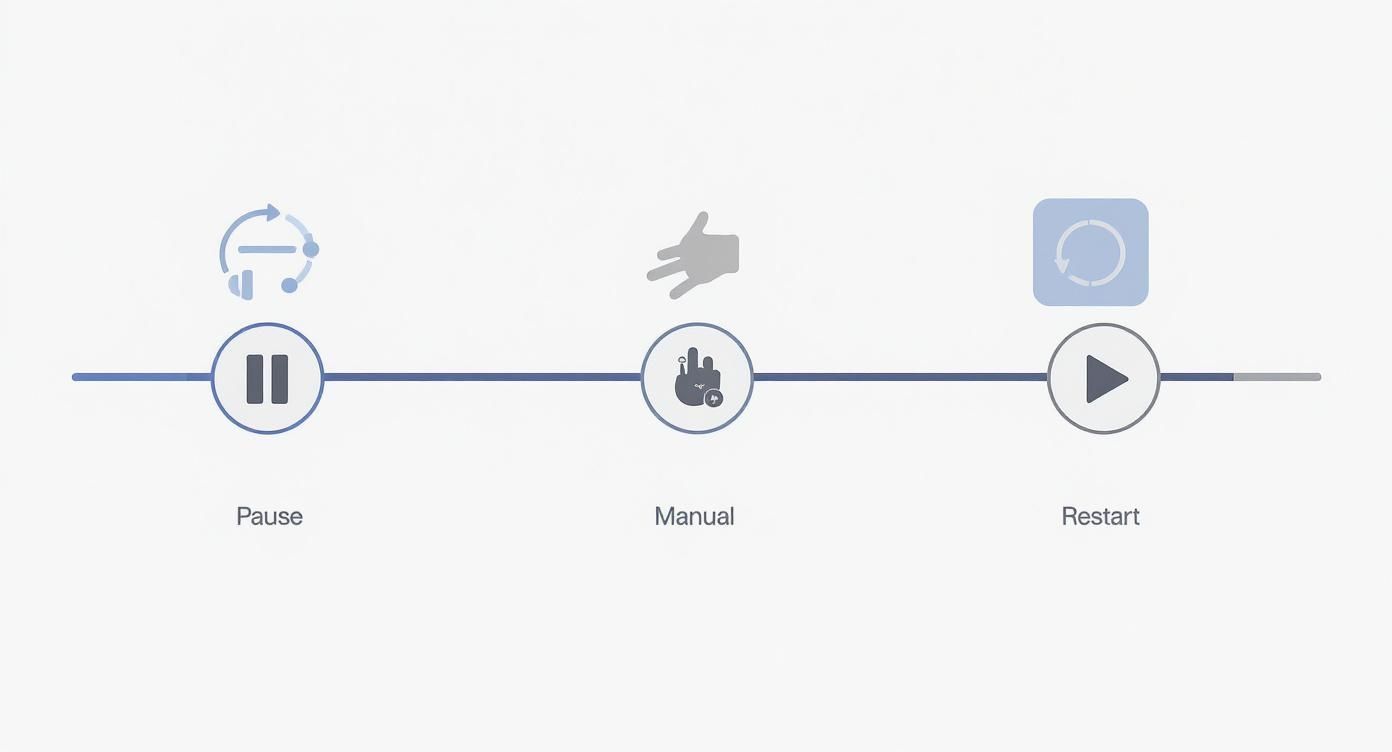
The crucial part here is the cooldown. Hitting pause on all automation and switching to manual, genuine engagement is the fastest way to get back in LinkedIn's good graces.
The Importance of a "Warm-Up" Period
Got a brand new LinkedIn account? Or one that’s been inactive for a while? Firing up a high-volume automation campaign is the quickest way to get it shut down. You have to warm it up first.
Account warming is just what it sounds like: you gradually ramp up your activity over a few weeks to build trust with LinkedIn’s algorithm. It shows the platform you're a real person who engages thoughtfully, not a spam bot.
Pro Tip: Think of it like going to the gym. You wouldn't walk in on day one and try to bench press 300 pounds. You start with the bar, get your form right, and slowly add weight. Your LinkedIn account needs the same respect to avoid getting flagged.
A methodical warm-up schedule is your best defense against getting restricted.
A Practical Ramp-Up Schedule
Here’s a simple schedule for safely warming up an account before letting automation fly:
- Week 1: Go completely manual. Log in every day, browse 10-15 profiles, and send 5-10 personalized connection requests yourself. No tools.
- Week 2: Introduce light automation. Set your tool to send just 15-20 connection requests and maybe follow up on 5-10 messages per day.
- Week 3: Start turning up the dial. Aim for around 30-40 connection requests and about 15 messages a day.
- Week 4: Carefully scale toward your goal. Moving up to 50-80 connection requests a day should be safe, but always monitor your acceptance rates.
Following a slow and steady approach builds a positive activity history. It makes your account more resilient, so when you finally scale up your outreach, you’re doing it from a position of strength and protecting your account.
Rethinking Your Outreach Strategy Beyond Automation
Sometimes, the real reason your LinkedIn automation isn't working has nothing to do with the tool itself. If your software is running fine but your connection rates are tanking and your inbox is empty, the problem isn't technical—it's strategic.
The era of blasting out hundreds of generic, templated connection requests is over.
That high-volume, impersonal "spray-and-pray" approach is the fastest way to get ignored, flagged as spam, and ultimately, watch your automation efforts deliver zero results. It’s time to shift your thinking from pure volume to scaled, thoughtful interactions.
The Shift from Volume to Value
Success on LinkedIn today hinges on personalization and delivering value right out of the gate. A connection request that mentions a prospect's recent article, a shared connection, or a company milestone is infinitely more powerful than the tired old "I'd like to connect."
This doesn’t mean you have to ditch automation. The key is to use it as a tool to scale human-like interactions, not to replace them. Think of it as an engine for executing a well-crafted strategy, freeing you up to focus on the real conversations that follow. If your campaigns have stalled, it's a good time to explore proven 8 LinkedIn lead generation strategies to get your direct engagement back on track.
Key Insight: Your goal isn't just to connect; it's to start a meaningful conversation. Automation should facilitate the first step of a high-quality interaction, not just add another number to your network count.
Crafting Messages That Actually Get Replies
An effective outreach message feels relevant, timely, and offers something of value upfront. The data is clear: one of the main reasons automation seems to fail is because it’s often used to power outdated tactics. LinkedIn's algorithms are smarter than ever at spotting inauthentic, high-volume behavior.
Campaigns still using generic templates are seeing connection acceptance rates plummet below 15%, with response rates often struggling to crack 3%. In contrast, personalized campaigns that reference a prospect's recent activity are hitting acceptance rates of 35–50% and response rates of 10–20% or higher.
So, how do you build a better outreach strategy?
- Hyper-Targeted Lists: Before you automate a single message, make sure your prospect list is clean and specific. A generic list of "CEOs in California" is too broad. A list of "CEOs of Series B SaaS companies in California that recently hired a VP of Sales"? Now you're talking.
- Personalization Tokens: Go beyond just
{{first_name}}. Use custom fields that pull in{{company_name}},{{shared_connection}}, or even a custom line you've written about a recent post they shared. - Value-First Approach: Stop asking for a meeting in the first message. Instead, offer a valuable resource, compliment their work, or ask an insightful question related to their industry.
This strategic shift is everything. For a deeper look at building these kinds of targeted lists, check out our complete guide to prospecting on LinkedIn. By focusing on quality over quantity, you turn automation from a potential account risk into a powerful engine for building genuine professional relationships.
A Safer Approach with Local-First Data Extraction
When your LinkedIn automation keeps failing—especially due to account flags and restrictions—the root cause often comes down to one critical detail: where the automation is running from.
Most traditional tools are cloud-based. This means every action originates from a data center IP address, a massive red flag for LinkedIn. They know these IPs are hotbeds for high-volume, automated traffic.
If just one person using that same shared IP gets too aggressive, it creates a "bad neighborhood." Suddenly, everyone on that IP is under scrutiny, increasing the risk for your account even if you're playing by the rules. It's guilt by association.
A more discreet and smarter method sidesteps that entire problem.
Why Local-First Is the Smarter Choice
A local-first approach completely flips the script. Instead of running tasks from a remote server farm, it moves the whole operation onto your own computer. Tools built this way, like ProfileSpider, work directly inside your browser.
What does this mean for you? Every profile you view and every piece of data you extract comes from your own IP address and uses your active browser session.
From LinkedIn's perspective, this activity looks identical to you manually clicking around the site. There are no suspicious data center IPs to flag and no unusual server fingerprints to raise alarms. It’s the ultimate camouflage.
This one architectural difference drastically lowers your risk profile. Your activity isn’t lumped in with hundreds of other accounts; it’s unique, organic, and blends right in with your normal browsing. This makes it an ideal no-code, one-click alternative for sales pros and recruiters who need to extract profile data safely.
Cloud Automation vs Local-First Extraction (ProfileSpider)
The difference in risk and reliability between the two methods is night and day, especially for any recruiter, marketer, or sales pro who depends on LinkedIn for leads.
To make it crystal clear, let's break down how traditional cloud automation stacks up against a local-first tool like ProfileSpider.
Cloud Automation vs Local-First Extraction (ProfileSpider)
| Feature | Traditional Cloud Automation | ProfileSpider (Local-First) |
|---|---|---|
| IP Address | Shared data center IPs (high risk) | Your own personal IP (low risk) |
| Detection | Easily flagged by LinkedIn's systems | Appears as normal manual activity |
| Data Storage | Profiles often stored on third-party servers | All data stays in your local browser |
| Workflow | Often involves complex cloud dashboards | Simple one-click extraction in-browser |
| Reliability | Prone to sudden platform-wide blocks | Consistent, as it mirrors user behavior |
Looking at this, it’s obvious that the local model isn't just about safety; it streamlines the entire process. If your goal is to efficiently and securely build lead lists or gather profile data, you don't need complex cloud sequences. A simple, local one-click extraction gets the job done without putting your account on the line.
Curious to see this in action? Take a look at our ProfileSpider deep-dive to see for yourself how this local-first technology works.
The Takeaway: Shifting from cloud-based tools to a local-first profile scraper is one of the most effective preventive measures you can take. It directly addresses the core reason many accounts get flagged and provides a more sustainable foundation for your data gathering and lead generation efforts.
Frequent Questions About LinkedIn Automation Problems
When your LinkedIn automation hits a snag, it's normal to have questions. Getting clear answers is key to figuring out what went wrong and getting your outreach back on track. Let's tackle some of the most common concerns.
Can LinkedIn Permanently Ban My Account?
Yes, LinkedIn can permanently restrict an account for violating its User Agreement, which includes using unauthorized automation.
However, a permanent ban is usually the last resort. It typically comes after repeated or severe violations. More often, you’ll get a temporary restriction or a warning first, giving you a chance to correct your actions.
The best defense is to use automation responsibly. Stick to safe activity limits, properly warm up your account before scaling up, and choose tools that mimic human behavior as closely as possible.
How Do I Know if My Account Is Shadowbanned?
A shadowban is sneaky by design, but the signs are obvious once you know what to look for.
The biggest red flags include:
- A sudden, sharp drop in your connection acceptance rate (e.g., from a healthy 30% down to below 5%).
- A noticeable nosedive in your profile views.
- Your connection messages feel like they're going into a black hole—zero replies.
If you suspect this is happening, pause all automation and switch to purely manual engagement for a week. If your metrics start to bounce back, you were likely dealing with a temporary algorithmic penalty.
Are Paid Tools Safer Than Free Ones?
Not necessarily. A high price tag doesn't guarantee safety—it's the underlying architecture of the tool that matters. Many popular paid tools are cloud-based, which means they run your activity from shared data center IPs that LinkedIn can easily identify and flag.
A much safer approach is a "local-first" tool. This kind of software operates directly from your own computer, using your unique IP address. It makes your automated activity look almost identical to your manual browsing, which significantly lowers your risk of getting caught.
My Tool Is Running but I'm Getting No Leads
This is a classic strategy problem, not a technical one. If the tool is sending messages and connection requests but the results are poor, it’s a clear sign your outreach approach is broken.
Your connection message might be too salesy, your targeting could be off, or your follow-ups might not be providing any real value. To get a better handle on the entire process, this definitive guide to social media post automation is a great resource for rethinking engagement.
Take a hard look at your whole campaign. Are you personalizing anything? Are you giving before you ask? A thoughtful, high-quality outreach campaign will always outperform a high-volume, generic one.