


Is your data scraper returning an empty table, incomplete results, broken HTML, or a CSV with missing rows? These failures usually happen because the website changed, the content has not finished loading, the scraper cannot interpret the page structure, or the site is limiting automated access.
You may also see messages such as “data extraction is not supported on this site,” “element not found,” “no data found,” or “data gathering stopped.” In other cases, the scraper appears to run successfully but misses products, profiles, inventory changes, or content loaded deeper in the page.
This guide explains the most common reasons a data scraper stops working, provides nine practical fixes, and helps you decide when the problem can be repaired and when you need a different extraction approach. It is written for non-technical users such as recruiters, sales teams, marketers, and researchers, but the same diagnostic principles apply to most browser-based scraping tools.
Why Your Data Scraper Suddenly Stopped Working
Most data scrapers depend on the structure of the webpage they are reading. They may look for a specific HTML element, CSS class, table, repeated card, or network response. When the website changes that structure, the extraction rule may no longer point to the correct content.
A scraper can also fail even when the page looks unchanged to you. Modern websites often load data through JavaScript after the initial HTML arrives, hide content behind interactions, or serve different page versions depending on browser state, login status, location, or automated-traffic detection.
Here are the most common reasons your data scraper is not working:
-
The website changed its HTML structure: A renamed CSS class, new wrapper element, redesigned table, or altered card layout can break selectors that previously worked.
-
The content is loaded with JavaScript: The initial HTML may contain little or no useful data. Products, profiles, prices, or inventory may appear only after the page runs JavaScript or requests data from an API.
-
The scraper runs before the page finishes loading: If extraction starts too early, the page may still be rendering or waiting for additional data.
-
The page requires interaction: Some content appears only after scrolling, clicking a tab, expanding an accordion, selecting a filter, accepting cookies, or opening a modal.
-
The scraper does not support the page type: Simple table scrapers may struggle with nested cards, dashboards, canvases, virtualized lists, embedded frames, or highly dynamic applications.
-
A login session or cookie expired: The scraper may be reading a login page, access-denied screen, or incomplete public version instead of the expected content.
-
The website is rate-limiting or blocking requests: Repeated extraction, rapid pagination, or unusual browser activity can trigger temporary restrictions, CAPTCHAs, or incomplete responses.
-
The scraper's selectors or extraction rules are stale: Visual scraping projects in tools such as ParseHub, Web Scraper, or similar rule-based products often need maintenance after website updates.
-
The browser extension or browser itself changed: Extension updates, Chrome permission changes, browser API changes, corrupted settings, or extension conflicts can stop a previously working scraper.
9 Practical Fixes to Try Right Now
Work through these checks in order. The goal is to determine whether the problem comes from the page, the browser, the scraper configuration, or access restrictions.
-
Confirm the data is actually visible: Check whether the expected products, profiles, prices, or table rows are visible in the browser. If the page itself is empty or still loading, the scraper cannot extract the missing content.
-
Wait for JavaScript content to load: Give the page several seconds before starting extraction. On JavaScript-heavy websites, data may arrive after the initial page load.
-
Scroll through the full page: Lazy-loaded and infinite-scroll pages load additional content only when you move down the page. Scroll until the required records are visible before running the scraper.
-
Open tabs, accordions, filters, and pagination: If the data is hidden behind an interaction, open the relevant section first. Content loaded only after a click may not exist in the page document until that action occurs.
-
Refresh the page and sign in again: Log out and back in when the website requires authentication. Then try a hard refresh using Ctrl+Shift+R on Windows or Linux, or Cmd+Shift+R on macOS.
-
Test a smaller extraction: Try one page, one category, or the first 20–50 rows. If a small scrape succeeds but a larger one fails, the issue may involve pagination, memory, timeouts, rate limits, or website protections.
-
Check whether the website layout changed: Compare the current page with the selectors or extraction recipe used by your scraper. If the target element moved or its class changed, update the rule.
-
Disable extension conflicts: Temporarily disable ad blockers, privacy extensions, script blockers, and other scraping tools. You can also test in an Incognito window after explicitly allowing the scraper extension there.
-
Update or reinstall the scraper: Check
chrome://extensions/for updates. Reinstall only after exporting or recording any saved scraping rules, because reinstalling may delete local configurations.
If you suspect temporary blocking, stop retrying repeatedly. Wait before testing again, reduce the number of pages, and use a slower, more deliberate workflow. Repeated retries can extend a temporary restriction.
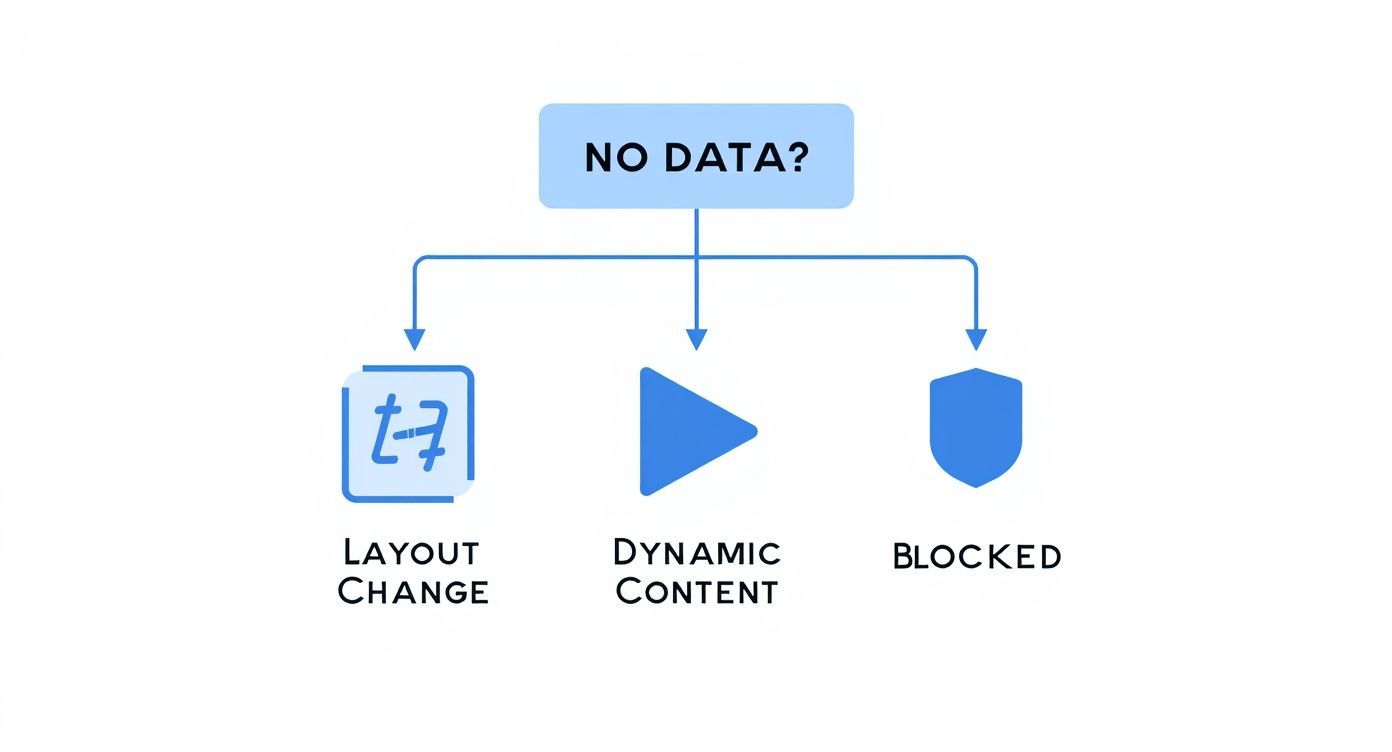
How to Diagnose Empty, Incomplete, or Broken Results
The type of failure often points to the underlying cause. Before switching tools, identify what the scraper is actually returning.
| Symptom | Likely Cause | What to Try |
|---|---|---|
| Empty result or no rows | Wrong selector, unsupported page, content not loaded, login expired, or blocked access | Confirm the content is visible, refresh the session, wait for loading, and inspect the extraction rule |
| Only the first few rows appear | Lazy loading, infinite scroll, pagination, or a virtualized list | Scroll, load the next page, reduce the batch size, or use a tool that supports pagination |
| Incomplete JavaScript content | The scraper reads the initial HTML before the application finishes rendering | Wait longer, interact with the page, or use browser-based extraction that reads the rendered document |
| Broken or partial HTML | The request received an error page, blocked response, redirect, or unfinished document | Open the page manually, check login status, look for a CAPTCHA, and verify the response is the expected page |
| Element not found | The selector changed, the element is inside an iframe, or the element loads only after interaction | Update the selector, open the relevant section, or check whether the data is embedded elsewhere |
| Old prices or missed inventory updates | Cached content, delayed website updates, incomplete pagination, or scraping the wrong page state | Hard refresh, verify the timestamp, compare with the live page, and retain source URLs and extraction times |
| The scraper breaks after every website update | The project depends on brittle selectors or a fixed page structure | Use more stable selectors, monitor failures, or switch to an extraction method that interprets the page semantically |
Why JavaScript-Heavy Websites Return Incomplete Data
Many modern websites are applications rather than static documents. The browser first receives a basic HTML shell, then JavaScript requests the actual content and inserts it into the page.
A scraper that reads only the initial HTML may therefore return:
- Empty containers
- Loading placeholders
- Only the first set of records
- Navigation without the underlying content
- Old or cached values
- A partial page before asynchronous requests finish
Frameworks such as React, Vue, Angular, and other client-rendered systems are not inherently impossible to scrape. The important question is whether the tool reads the rendered page after the data loads or only the initial source returned by the server.
Content Loaded Deeper in the Page
Sometimes the missing data is present only after a secondary request or user action. Common examples include:
- A product variant selected from a drop-down
- Inventory loaded after choosing a location
- Profiles revealed after clicking “Load more”
- Contact details shown in a modal
- Data inside an embedded iframe
- Results loaded after applying a search filter
Before concluding that the data cannot be extracted, reproduce the full user journey manually and confirm when the information becomes available.
Why Some Pages Cannot Be Scraped Reliably With Simple Tools
Simple browser scrapers work best when the page contains repeated, visible rows or cards with a consistent structure. They become less reliable when the page requires complex interaction or changes its markup frequently.
Difficult page types may include:
-
Deeply nested or inconsistent HTML structures where similar records use different markup.
-
Card-based layouts that do not resemble a conventional table.
-
Virtualized lists where only the currently visible records exist in the document.
-
Content loaded through tabs, buttons, filters, or modals.
-
Pages protected by CAPTCHAs, login requirements, rate limits, or anti-automation systems.
-
Canvas-based interfaces where visible text is drawn rather than represented as standard HTML.
Examples can include dynamic job boards, product dashboards, social-network result pages, modern directories, and inventory systems.
When a scraper repeatedly breaks after minor website changes, the problem may be the extraction method rather than a temporary software error. A fixed CSS selector is efficient when the page is stable, but it is also fragile when the website changes frequently.
For a broader explanation of basic extraction tools, see our guide to using a simple web scraper.
Alternatives to Use When Your Scraper Is Broken
The right alternative depends on the type of data, the page structure, the number of pages, and whether the workflow requires navigation or interaction.
-
ProfileSpider: Best suited to extracting repeated profile, person, company, product, or listing information from a webpage that is already open in Chrome. Instead of requiring you to define CSS selectors, ProfileSpider uses AI to interpret the loaded page and convert the available information into structured rows. It is particularly useful for sales, recruiting, marketing, and research workflows involving directories, team pages, search results, speaker pages, and similar repeated records.
ProfileSpider can extract information that is available in the loaded page document. It does not bypass login restrictions, CAPTCHAs, paywalls, anti-bot systems, or content that the website has not loaded. For tabs, filters, infinite scroll, or “Load more” controls, open or load the relevant content before extraction.
-
Octoparse: A visual scraping platform for workflows that require pagination, navigation, scheduled extraction, and more advanced page interaction. It has a larger learning curve than a one-click browser extension but is more appropriate for recurring multi-page scraping projects.
-
ParseHub: A desktop visual scraper that can handle JavaScript-rendered websites, navigation, drop-down menus, and multi-step extraction projects. Because it relies on configured workflows, projects may need maintenance when target websites change.
ProfileSpider is not a replacement for every type of scraper. It is a practical alternative when your immediate goal is to extract structured records from the page currently open in the browser without creating and maintaining a selector-based scraping recipe.
If you need scheduled crawling, hundreds of linked pages, authenticated navigation, or a fully automated pipeline, a configurable visual scraper or custom browser automation may be more suitable. You can compare additional options in our guide to the best web scrapers.
How to Prevent Future Scraper Failures
No extraction workflow is completely maintenance-free, especially when it depends on websites you do not control. However, a few practices can reduce unexpected failures.
- Retain the source URL: Keep a reference to the page each record came from so you can verify missing or changed information.
- Record the extraction date: This is especially important for prices, inventory, job listings, and professional roles.
- Test a small sample first: Confirm the first few records before running a larger extraction.
- Monitor expected row counts: A sudden drop from 500 records to 20 is a useful failure signal.
- Check required fields: Alert or review the output when important columns are suddenly empty.
- Avoid brittle selectors: When configuring a scraper, prefer stable identifiers and semantic structure over deeply nested CSS paths.
- Review website changes: When a target site is redesigned, test the scraper before depending on the next scheduled result.
- Keep a fallback workflow: Know whether you can switch to manual extraction, AI-assisted page extraction, another data source, or a custom scraper.
Frequently Asked Questions
Why does my data scraper return an empty file?
The page may not have finished loading, the extraction selector may no longer match, your login session may have expired, or the website may have returned a blocked or incomplete page. Confirm that the expected content is visible before running the scraper.
Why does my scraper return incomplete data on JavaScript websites?
The scraper may be reading the initial HTML before JavaScript loads the full dataset. Wait for the page to finish rendering, scroll through lazy-loaded content, open required sections, or use a tool that reads the rendered page.
Why does my scraper keep breaking when the website updates?
The extraction workflow probably relies on selectors or page structures that change frequently. Update the selectors, use more stable identifiers, or switch to an approach that interprets the page content without depending entirely on fixed CSS paths.
Why is my inventory scraper missing product updates?
Possible causes include cached pages, incomplete pagination, delayed JavaScript requests, location-dependent inventory, variant selection, or extracting before the latest data is loaded. Retain timestamps and compare the result with the live source.
What does “element not found” mean?
It usually means the scraper’s selector no longer matches anything. The element may have moved, changed class, loaded after an interaction, or appeared inside an iframe or modal.
Can every website be scraped?
No. Some pages require authentication, restrict automated access, use CAPTCHAs, present data through unsupported interfaces, or prohibit certain extraction methods. Technical possibility also does not remove the need to comply with applicable terms, privacy requirements, and laws.
Should I switch scrapers immediately?
Not always. First determine whether the issue is temporary, such as an expired session or incomplete page load. Switch tools when the current scraper fundamentally cannot handle the page structure or requires more ongoing maintenance than the data is worth.