Why Chrome Extensions Get Blocked on LinkedIn: A Practical Guide for Professionals
Learn why LinkedIn blocks Chrome extensions, what triggers account restrictions, and safer ways to build lead lists without aggressive automation.
by Adriaan 17 min read
Share
Adriaan
17 min read
Share this article
If your go-to LinkedIn Chrome extension suddenly stopped working, you’re not alone. LinkedIn actively detects and blocks tools that violate its policies on automation, scraping, messaging, and high-volume account activity. This usually is not a random bug. It is part of LinkedIn’s effort to protect user privacy, reduce spam, and control how its professional network is used.
For sales teams, recruiters, sourcers, and marketers, a blocked extension can disrupt an entire workflow. One day you are building lead lists or sourcing candidates efficiently. The next day, your extension stops loading, data no longer appears, or your account starts showing warnings and restrictions.
The important point is this: most LinkedIn extension problems are caused by a conflict between productivity automation and LinkedIn’s platform rules. Tools that automatically view profiles, send connection requests, scrape large result sets, message users, or run high-volume background actions are more likely to trigger enforcement.
This guide explains why Chrome extensions get blocked on LinkedIn, what technical and policy triggers are involved, and how professionals can use safer, more sustainable workflows for lead generation and recruiting.
The Real Reason Your LinkedIn Extension Is Blocked
The core of the problem is a fundamental conflict: many Chrome extensions are built to perform actions that LinkedIn’s User Agreement restricts or prohibits. Most tools that automate profile interactions, scrape data at scale, or send repeated actions through your account operate in a risky area from LinkedIn’s perspective.
This matters because the consequences affect both the tool and the user. The extension may stop working, disappear from the Chrome Web Store, or lose access to key functionality. Your LinkedIn account may also receive warnings, search limits, temporary restrictions, or in severe cases, account suspension.
The Cat-and-Mouse Game of Detection
LinkedIn is constantly updating its platform to detect and shut down unauthorized automation tools. This creates a recurring cat-and-mouse cycle: extension developers find a workaround, LinkedIn patches the weakness, and the professional relying on the tool is left with a broken workflow.
LinkedIn’s motivations are straightforward and business-focused:
Protect user data: Preventing unauthorized third-party apps from harvesting member information is a major priority.
Maintain platform quality: LinkedIn wants to reduce spammy, robotic behavior that degrades the user experience.
Control the ecosystem: LinkedIn wants users to interact with the platform and its paid features in approved ways.
Reduce abusive automation: Tools that send mass connection requests, messages, or profile views can harm trust across the network.
The message is clear: using aggressive LinkedIn automation can put your professional account at risk. The safer path is to avoid high-volume automated actions and use workflows that keep you in control.
If you are currently dealing with this issue, our guide on why your LinkedIn scraper is not working explains the most common failure points and what to check first.
The solution is not to abandon efficiency. It is to shift away from aggressive automation and toward safer lead collection workflows. For example, you can use search, X-ray search, public pages, company websites, team pages, and directories to discover relevant profiles, then organize those leads in a controlled way. For broader lead collection workflows, see our lead scraping guide.
The table below summarizes the most common reasons LinkedIn Chrome extensions get blocked.
Reason for Block
What It Means for You
LinkedIn's Motivation
Policy Violations
The extension performs actions such as unauthorized scraping, automated messaging, or automated profile activity.
Protecting user data, preventing spam, and preserving platform integrity.
Technical Detection
The extension triggers LinkedIn's detection systems through robotic, high-volume, or unusual behavior.
Differentiating normal human activity from automated tools.
Rate Limiting
Your account exceeds safe activity thresholds for profile views, searches, connection requests, or messages.
Preventing spam, abuse, and excessive load from individual accounts.
Browser or Store Issues
The extension violates Chrome Web Store policies, requests excessive permissions, or fails to comply with newer extension standards.
Protecting browser users from unsafe, invasive, or outdated extensions.
Understanding these factors is essential for any professional who wants to avoid account problems while still building useful lead and candidate lists.
Decoding LinkedIn's Rules on Automation and Scraping
To understand why so many Chrome extensions fail on LinkedIn, you must first understand the platform's rules. LinkedIn’s terms restrict unauthorized software, automated activity, and data scraping. These are exactly the activities many lead generation and recruiting extensions are built around.
For sales professionals, recruiters, and marketers, translating this into practical workflows is important. LinkedIn is not simply blocking tools for technical reasons. It is enforcing rules around privacy, member experience, data control, and platform integrity.
The Core Prohibitions Explained for Business Users
LinkedIn's enforcement typically focuses on three main activities:
Unauthorized software: Browser extensions, bots, scripts, or external tools that interact with LinkedIn without approval.
Automated actions: Tools that automatically send connection requests, messages, profile views, endorsements, or repeated searches.
Data scraping: Software that systematically extracts names, job titles, company data, profile URLs, or other member information at scale.
These rules exist to prevent spam, fake engagement, privacy violations, and large-scale data harvesting. From LinkedIn’s perspective, tools that mimic human activity at scale are a direct threat to trust on the platform.
Where Policy Meets Everyday Workflows
This is where professionals often get caught off guard. Many extension features look like simple productivity boosters, but LinkedIn may interpret them as prohibited automation.
A salesperson using an extension to send hundreds of connection requests per day is creating a high-risk automation pattern. A recruiter using a tool to scrape hundreds of profiles from a search result may also be triggering prohibited data extraction. Even if the intent is legitimate prospecting or sourcing, the behavior can still look automated and non-compliant.
LinkedIn's enforcement is mostly pattern-based. Its systems are designed to detect behavior that resembles automation, scraping, spam, or unusual account activity.
Understanding the Legal and Ethical Boundaries
The debate over scraping extends beyond LinkedIn's policies. It also touches legal and ethical questions around personal data, consent, business contact data, and privacy obligations. For a broader overview, our guide on whether website scraping is legal explains the key considerations.
The safest approach is to avoid tools that automate actions on LinkedIn or harvest data in bulk without clear user control. Instead, use targeted research, manual review, public sources, and tools that help you organize information you can already access. For practical guidance, review our lead scraping best practices.
How LinkedIn Technically Detects and Blocks Extensions
When a Chrome extension suddenly stops working on LinkedIn, it is often because it has triggered one or more technical detection systems. These systems are designed to distinguish normal human use from automated behavior.
For recruiters, sales teams, and marketers who rely on extensions for lead generation, understanding these technical defenses explains why tools break and why choosing a safer workflow matters.
Spotting the Digital Footprints of Automation
Most automation tools leave patterns that are different from normal human behavior. They may click too quickly, repeat the same action too consistently, load too many profiles in a short time, or perform searches and exports at a rate that looks unnatural.
Imagine a recruiter manually viewing 20 profiles. Each profile view happens at a different pace. The person pauses, scrolls, reads, switches tabs, and decides what to do next. Now compare that with an extension that loads profile after profile at fixed intervals. That pattern is easier to classify as automation.
Browser Fingerprinting and Extension Signals
LinkedIn can also use technical signals from your browser environment. These may include browser characteristics, extension behavior, automation frameworks, request patterns, and other signals that help platforms distinguish normal browsing from scripted activity.
This means LinkedIn may detect:
Known extension signatures: Traces left by specific automation tools or browser add-ons.
Automation frameworks: Evidence that a browser is being controlled by a script instead of a person.
Suspicious network patterns: Repeated requests, unusual endpoints, or activity that does not match normal user behavior.
If you have seen other tools fail, such as the Apollo extension, this can be part of the same broader pattern. We cover this in more detail in our guide to Apollo extension issues on LinkedIn.
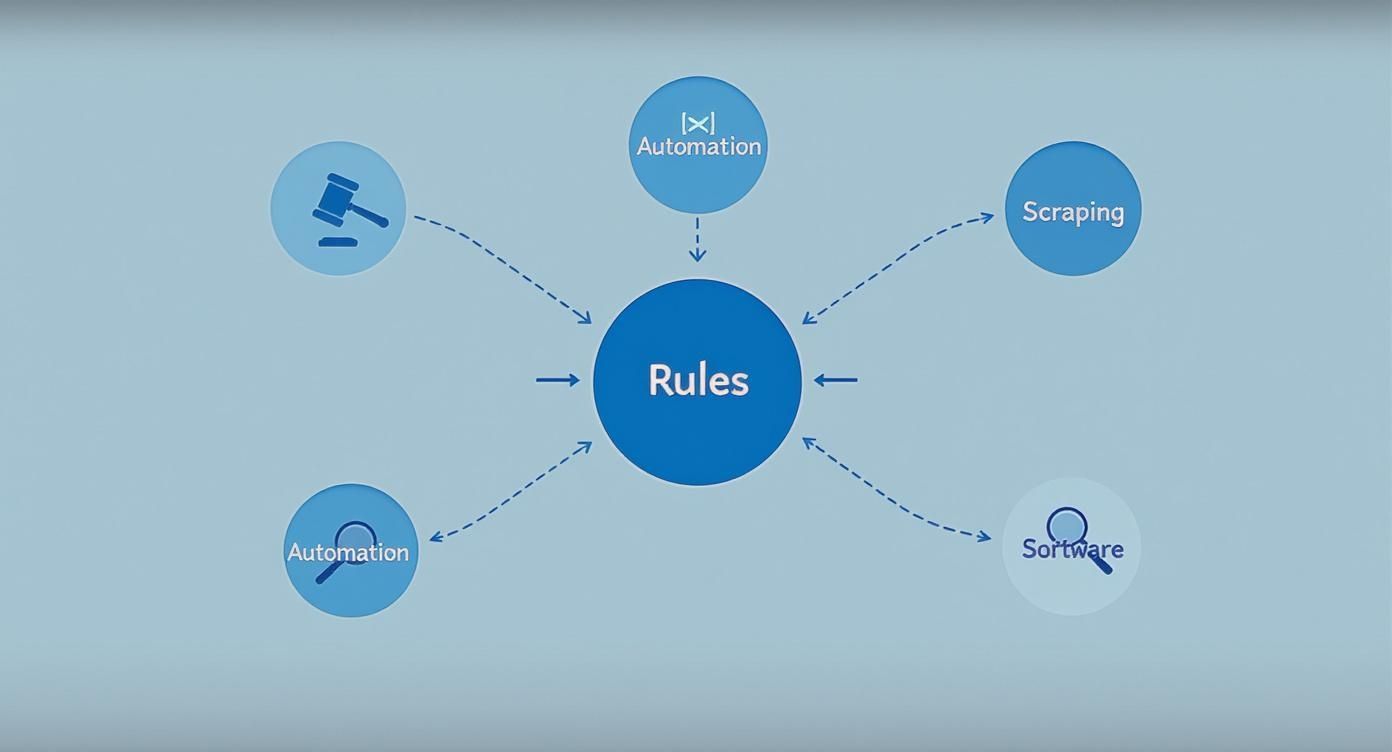
This diagram illustrates how LinkedIn's platform rules inform technical enforcement against automation, scraping, and unauthorized software.
Rate Limiting and Network-Level Defenses
Another common defense is rate limiting. This is an invisible speed limit on account activity. LinkedIn can limit how many profiles you view, searches you run, messages you send, or connection requests you make within a certain period.
When an extension pushes your account beyond normal activity levels, it may trigger warnings, temporary restrictions, or reduced functionality. This is why high-volume LinkedIn automation is risky even when the tool appears to work for a while.
Safer workflows avoid continuous background automation and instead focus on targeted, user-controlled actions. A browser-based tool like ProfileSpider is designed around controlled extraction from pages you are viewing, rather than automating connection requests, messages, or large-scale LinkedIn actions.
Browser and Web Store Policies That Cause Blocks
It is not always LinkedIn that causes an extension to stop working. Sometimes the issue starts with the Chrome Web Store or the browser itself. Google has strict rules for extensions, and tools that violate those rules can be disabled, removed, or forced to change how they work.
For sales, recruiting, and marketing teams, this adds another layer of risk. A tool must comply not only with LinkedIn’s policies, but also with Google’s extension rules, browser security requirements, and privacy expectations.
The Manifest V3 Challenge
One major change for Chrome extensions is the transition to Manifest V3. A manifest defines what an extension is allowed to do inside Chrome. Manifest V3 tightened rules around background activity, permissions, security, and performance.
Many older scraping and automation tools were built around background scripts, broad permissions, and persistent automation. Those patterns became harder to maintain under newer browser rules. As a result, some extensions had to be rebuilt, limited, or removed.
The Problem of Overly Permissive Extensions
Another red flag is an extension that asks for more access than it really needs. When you install an extension, always review its permissions. A trustworthy tool should request only the permissions required for its core function.
Be careful with permissions such as:
"Read and change all your data on all websites": This gives broad access to your browsing activity and page content.
"Access your browsing history": This can expose your browsing patterns across the web.
"Manage your downloads": This may be legitimate in some cases, but it should be clearly justified.
If an extension requests permissions that seem unrelated to its stated purpose, treat that as a warning sign. The more access a tool has, the more risk it introduces.
This is why privacy-first tools are designed to minimize unnecessary access. A controlled tool should help you extract and organize data without demanding broad permissions, running hidden automation, or sending sensitive data to unknown third-party systems.
Understanding the Data Privacy and Security Risks
Beyond account restrictions, one of the biggest reasons LinkedIn cracks down on extensions is data security. LinkedIn is built on professional identity and trust, so tools that collect, transfer, or misuse member data create serious platform risk.
When you install a Chrome extension, you are trusting a third-party developer with some level of access to your browser activity. Many users accept permissions without fully understanding what the tool can see, collect, or transmit.
The Hidden Dangers of Data Harvesting
Using an insecure extension can create risks beyond your LinkedIn account. If a tool collects personal data, sends it to third-party servers, or stores it without clear controls, your company may face compliance, security, or reputational problems.
These risks are especially important for teams working with candidate data, prospect data, or business contact records. Extensions should be evaluated like any other vendor that touches sensitive information.
The key questions are:
What data does the extension collect?
Where is that data processed?
Where is it stored?
Can the vendor access it?
Can you delete or export it?
Does the tool explain its privacy model clearly?
Choosing a Privacy-First Approach for Lead Generation
A safer approach starts with choosing tools that give you more control over your data. One major distinction is whether a tool is cloud-first or local-first.
Many high-risk extensions send extracted data to remote servers for processing or storage. That model introduces several risks:
Data transfer risk: Information leaves your browser and travels to a third-party system.
Vendor security risk: You depend on the vendor’s infrastructure and security practices.
Data misuse risk: Poorly governed vendors may use or retain data in ways users do not expect.
A local-first approach gives users more control because extracted data is processed and stored in the browser or on the user’s own machine, instead of being sent to a third-party cloud by default.
This is one of the reasons professionals increasingly prefer controlled browser-based workflows. With a tool like ProfileSpider, users can collect visible profile data, organize it locally, enrich where appropriate, and export when needed. For broader enrichment workflows, see our guide to the best data enrichment tools.
Safer Alternatives to Aggressive LinkedIn Automation
The safer path is not to automate more aggressively. It is to reduce dependency on risky LinkedIn automation and build a more durable sourcing workflow. That means using LinkedIn carefully, combining it with public search, and collecting leads from sources where your prospects are visible outside of repeated automated platform actions.
Safer alternatives include:
Use LinkedIn manually for research: Search, review profiles, and make human decisions before saving or contacting someone.
Use Google X-ray search: Find public LinkedIn profiles through search operators rather than running aggressive in-platform automation. See our Google X-ray search Boolean examples.
Use a LinkedIn search builder: Build better search strings before sourcing. Try the LinkedIn Search Builder.
Use broader people search workflows: Search across multiple platforms and public sources with the People Finder.
Collect leads from company websites: Team pages, directories, event pages, partner pages, and niche communities often contain useful public profile data.
Enrich after collection: Use enrichment and email finding after building a relevant list, instead of trying to automate every step inside LinkedIn.
This approach is slower than aggressive automation, but it is more sustainable. It also produces better lists because you are making more deliberate sourcing decisions instead of blindly scraping or messaging at volume.
Adopting Safer Practices for LinkedIn Lead Generation
After examining LinkedIn's policies and technical defenses, the path forward is clear. You do not have to abandon lead generation or recruiting workflows. You need to avoid high-risk automation patterns and shift toward a more controlled, human-first approach.
Instead of trying to automate hundreds of interactions per day, the goal should be to build highly targeted lists and engage prospects authentically. This respects both the person you are contacting and the platform you are using.
Embrace Local-First Data Processing
A critical component of a safer strategy is changing how and where your data is processed. The riskiest extensions are often cloud-based tools that scrape data and send it to remote servers. That creates privacy risk and can leave obvious technical signals.
The safer alternative is local-first data processing. With this model, the profile information you gather is processed and stored locally, giving you more control over your lead lists.
Local-first tools are not a license to ignore platform rules. But they can reduce unnecessary data exposure and help you avoid risky cloud-based automation patterns.
This is the core idea behind no-code tools like ProfileSpider. It helps analyze pages you are viewing and lets you extract visible profile data into local lists, rather than running aggressive account automation.
Your Checklist for Evaluating Tool Safety
Before installing any third-party tool for LinkedIn, think like a security analyst. Understanding why Chrome extensions get blocked on LinkedIn is the first step to making smarter choices.
Use this checklist to evaluate the risk level of any tool before you click “Add to Chrome.”
Checklist for Evaluating LinkedIn Tool Safety
Safety Check
What to Look For (Green Flag)
What to Avoid (Red Flag)
Data Handling
Processes and stores data locally or clearly explains what is sent to the cloud and why.
Sends data to third-party servers without a clear explanation or privacy policy.
Automation Level
Focuses on user-controlled extraction, organization, or productivity support.
Automates connection requests, messages, profile views, endorsements, or repeated actions at high volume.
Permissions
Asks for permissions that match the tool’s core purpose.
Demands broad access to all websites, browsing history, or unrelated browser functions.
User Reviews
Recent reviews mention reliability, support, privacy, and safe workflows.
Supports targeted research, review, list building, and export.
Encourages mass scraping, mass messaging, or bypass-style automation.
Choosing the right tool comes down to prioritizing your account's long-term health. Green flags indicate tools designed with control, privacy, and practical use in mind. Red flags usually point to shortcuts that can lead to restrictions.
Frequent Questions About Blocked LinkedIn Extensions
It’s frustrating when a tool suddenly stops working or your LinkedIn account gets restricted. Here are the most common questions professionals have when this happens.
How Do I Know If My LinkedIn Account Is Restricted?
You may notice that connection requests fail to send, messages do not deliver, search results look unusually limited, or LinkedIn asks for verification. In some cases, you may receive an official warning or restriction notice.
If you suspect a restriction, disable LinkedIn-related extensions immediately and reduce your activity. Avoid trying to “push through” the restriction with more tools or more activity. That can make the situation worse.
Are All LinkedIn Chrome Extensions Risky?
No, but the risk depends on what the extension does. Extensions that automate actions on LinkedIn, scrape large volumes of data, or send data through remote systems are much riskier than tools that support user-controlled workflows.
The safest tools are those that minimize automation, ask for reasonable permissions, explain their data handling clearly, and let the user stay in control.
What Is the Safest Way to Gather Leads From LinkedIn?
The safest approach is targeted, human-led research combined with controlled tools. Use LinkedIn to identify relevant people, use search/X-ray workflows to discover public profiles, and avoid mass automated activity.
You can also use public company websites, directories, team pages, event pages, and other sources to build lead lists outside of aggressive LinkedIn automation. For practical sourcing ideas, try the People Finder or review our guide on how to search for employees on LinkedIn.
Can I Still Use ProfileSpider With LinkedIn?
ProfileSpider is designed for controlled browser-based extraction from pages you can access, not for mass automated LinkedIn actions. The safer use case is to avoid aggressive automation, review profiles manually, and use ProfileSpider to save and organize visible profile information when appropriate.
As with any sourcing workflow, you are responsible for following platform rules, privacy obligations, and applicable laws. The best long-term strategy is to prioritize quality research, targeted lists, and respectful outreach over high-volume automation.
If you want a safer way to organize lead data from pages you can access, try ProfileSpider: extract visible profiles, save them into lists, enrich missing details, and export when you are ready.