

You’ve nailed the perfect Boolean string to uncover a goldmine of candidates or sales leads. You hit ‘Enter,’ and there they are. Then comes the frustrating part—you realize Google doesn't have an "Export to CSV" button.
So, how do you turn that valuable screen of information into an actionable spreadsheet? For busy recruiters, sales reps, and marketers, manually copying and pasting is a non-starter. This guide will walk you through the old, painful method and then show you the modern, one-click solution to export Google Boolean search results to CSV efficiently.
The Manual Method: A Recipe for Lost Time
Before we get to the automated solution, let's briefly touch on the traditional approach. For anyone building lead lists, the manual method is a familiar, painful process.
You run your precise Boolean search on Google. The results look perfect. Now the "fun" begins:
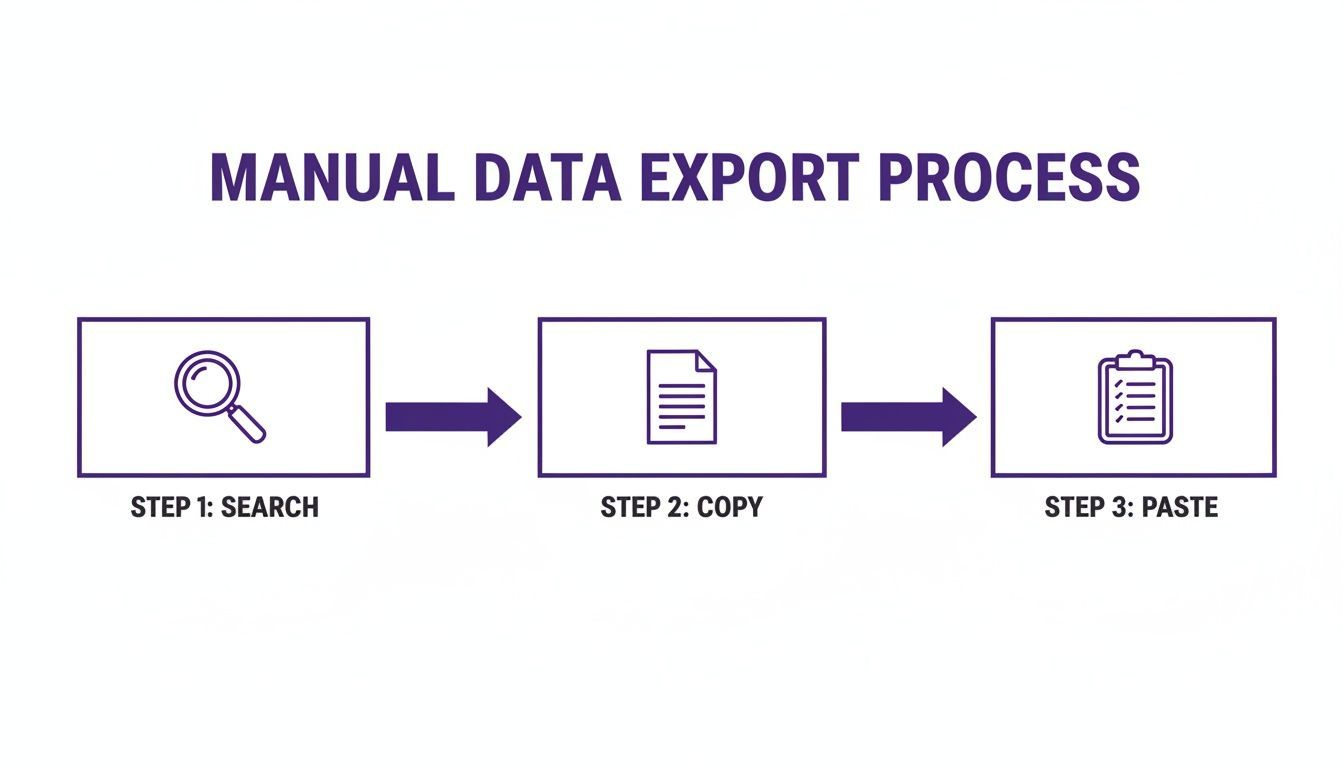
- Search: You find the profiles you need.
- Copy: You meticulously highlight the name, title, and link for each result.
- Paste: You paste the jumbled text into a spreadsheet.
- Clean: You spend minutes untangling the data into separate columns.
- Repeat: You do this for every single profile, across every single page of results.
Why This Workflow Doesn't Scale
Let's be realistic. If your search uncovers 200 potential leads, this manual process means:
- Copying and pasting data from at least 20 different Google search pages.
- Wrestling with messy formatting for every single entry.
- Constantly double-checking for errors like skipped profiles or jumbled names.
This isn’t just slow; it’s a productivity killer that actively prevents you from hitting your targets. The real cost isn't just the hours wasted—it's the opportunity cost. Every hour spent on manual data entry is an hour you’re not spending on outreach, building relationships, or closing deals. This manual bottleneck is the first major hurdle in any Organic Lead Generation strategy.
Mastering Google Boolean Operators for Precision Prospecting
Before you can export anything, you need search results that are worth exporting. A sloppy search query gives you a messy list of irrelevant profiles. But a well-crafted Boolean search is a surgical tool that lets you pinpoint exactly who you need and cut out the noise.
Getting this right is the foundation for a high-quality CSV file.
Crafting Queries for Recruiters
Let's say you're a recruiter tasked with finding "Java Developers in Austin, TX." A basic search for that phrase will be a mess of job ads, blogs, and maybe a few actual candidates.
This is where a Boolean search changes the game.
Here’s a real-world example:
site:linkedin.com/in "Java Developer" AND (Austin OR TX) AND (Spring OR Hibernate) -"Recruiter"
Let’s quickly break down why this works:
site:linkedin.com/in: Forces Google to only show results from LinkedIn member profiles, instantly filtering out junk."Java Developer": Searches for the exact phrase.AND (Austin OR TX): Combines conditions, finding profiles with the job title and a location (either "Austin" or "TX").-"Recruiter": The minus sign excludes profiles that also contain the word "Recruiter," cleaning up your results.
This query delivers a hyper-targeted list that's ready for extraction.
Building Lead Lists for Sales and Marketing
The same logic applies to sales and marketing. If you're a sales rep targeting SaaS marketing leaders in New York, you need decision-makers, and you need them now.
Check out this powerful query:
("VP of Marketing" OR "Chief Marketing Officer" OR CMO) AND "SaaS" AND ("New York" OR NYC) site:linkedin.com/in
This search is effective because it targets multiple senior-level titles at once using OR, then layers on the industry ("SaaS") and location to build a highly qualified list from the get-go.
Getting comfortable with these combinations is non-negotiable before you think about how to export Google Boolean search results to CSV. A clean input is the only way to get a clean output. For more ready-to-use strings, check out our complete guide to Google X-ray search examples.
The One-Click Solution: How ProfileSpider Simplifies Everything
Now for the modern approach. Instead of a multi-hour manual slog, you can use a no-code tool like ProfileSpider to automate the entire process in seconds. It’s a simple Chrome extension designed for recruiters and sales pros, not developers.
Here’s how the simplified, one-click workflow looks:
Step 1: Run Your Google Boolean Search
Start with the work you’ve already done. Run your perfectly crafted Boolean query in Google and get the results on your screen.
Step 2: Extract Profiles with One Click
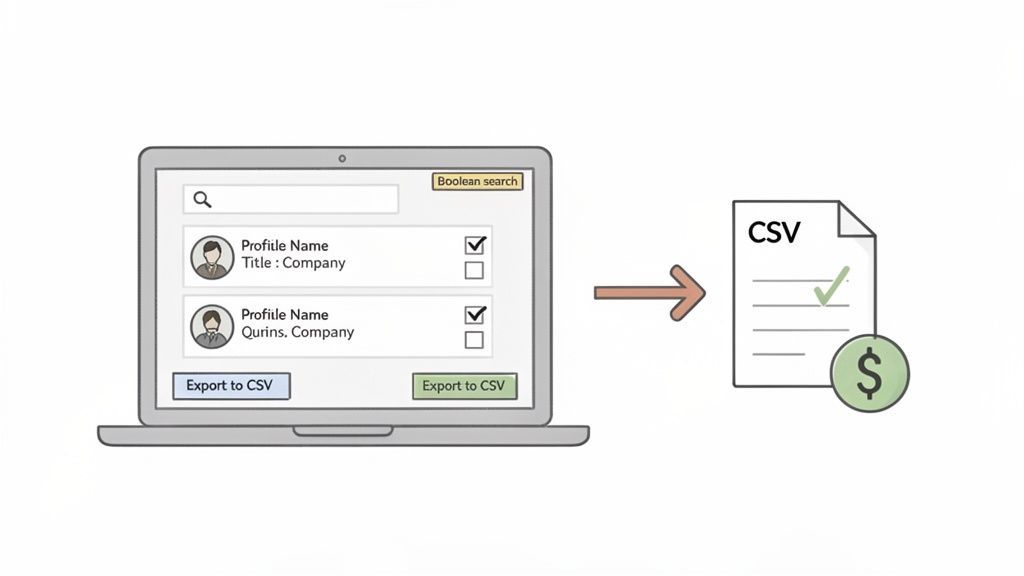
Open the ProfileSpider Chrome extension. You’ll see a simple button: "Extract Profiles." Click it. That's it.
The tool’s AI-powered engine instantly scans the search results page, identifies every profile, and extracts key data like names, titles, and companies directly from the search snippets.
Step 3: Go Beyond the First Page Automatically
One of the biggest limitations of manual scraping is dealing with multiple pages. ProfileSpider solves this by automatically handling pagination. It will navigate through every page of your search results, gathering up to 200 profiles in a single operation without you lifting a finger.
This is what makes it possible to build lists at a scale that is simply not feasible by hand.
Step 4: Organize and Export Your Clean CSV
Once extracted, the profiles appear in the ProfileSpider interface, already organized. Before you export, you can:
- Create custom lists: Segment your prospects (e.g., "SF Software Engineers Q4").
- Add tags: Qualify leads on the fly (e.g., "Hot Lead," "SaaS Experience").
When you're ready, click "Export to CSV." You get a final checklist of all the data columns captured. Simply check the fields your CRM or outreach tool needs (like "First Name," "Last Name," "LinkedIn URL") and uncheck the rest.
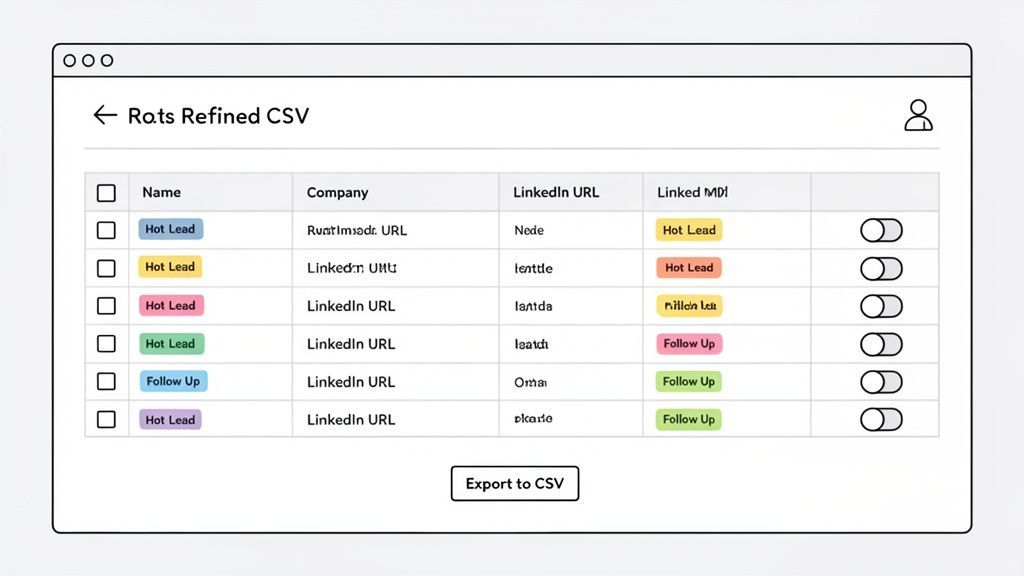
This gives you a perfectly clean file that’s ready for import, with no extra data cleanup required. The entire workflow, from search to formatted CSV, takes minutes, not hours.
For a closer look at the tool's capabilities, check out our deep dive into ProfileSpider's features.
Manual vs. Automated: The Difference is Clear
| Task | Manual Method (The Old Way) | Automated Method (The ProfileSpider Way) |
|---|---|---|
| Data Extraction | Manually copy and paste name, title, and URL from each result. | Click "Extract." Tool automatically scrapes all results. |
| Handling Pagination | Click through 10-20+ pages of Google results, repeating the copy-paste process on each. | The tool handles pagination automatically, grabbing data from all pages in one go. |
| Data Cleaning | Spend time reformatting inconsistent text, splitting columns, and fixing errors. | Data is exported into clean, pre-formatted columns. No cleanup needed. |
| Time to Export 200 Profiles | 1-2 hours, depending on focus. | Under 2 minutes. |
| Error Rate | High. Prone to copy-paste mistakes, missed profiles, and data mix-ups. | Near-zero. Automation ensures consistency and accuracy. |
The table makes it obvious: automation isn't just an improvement; it's a complete game-changer for your workflow. It replaces a slow, error-prone manual process with a single, reliable click. This isn't just about speed—it’s about a fundamentally better way to build high-quality prospect lists.
Common Challenges and How ProfileSpider Solves Them
When you start to export Google Boolean search results to CSV, you'll encounter a few common roadblocks. Here’s how a dedicated tool like ProfileSpider overcomes them.
Challenge: Missing Contact Information
Google's search snippets rarely contain direct contact info like emails or phone numbers. A basic export will only grab what’s visible on the search results page.
Solution: ProfileSpider has a built-in "Enrich" feature. After you've extracted your initial list of profiles (name, title, LinkedIn URL), you can run the enrichment. The tool will then visit those profile pages and find available contact information, turning a basic list into an actionable one.
Challenge: The Risk of Getting Blocked by Google
If you scrape too aggressively, Google's security measures can temporarily block your IP address.
Solution: ProfileSpider is designed to fly under the radar. It operates from your browser at a controlled pace, mimicking human behavior. This approach not only keeps your account safe but also helps you build cleaner, more focused data sets without interruptions.
Challenge: Messy, Unstructured Data
Manually copying and pasting leads to messy spreadsheets that require tedious cleanup.
Solution: ProfileSpider provides a structured export from the start. By allowing you to select specific columns before exporting, it ensures your final CSV is perfectly formatted for your CRM or sales tools. This is a world away from the manual effort needed to build a simple web scraper with Python and export to CSV and is designed for non-technical users.
Challenge: Privacy and Data Control
Using some third-party scraping tools means your data passes through their servers, creating privacy risks.
Solution: ProfileSpider is a privacy-first tool. All data is processed and stored locally on your machine. You maintain full control and ownership of your prospect lists, ensuring compliance with regulations like GDPR.