


You can scrape website data to CSV without Python by using a no-code browser extension, a spreadsheet function, or a visual scraping tool. The best option depends on whether the page contains a simple table, repeated profile cards, directory listings, company data, or content loaded dynamically.
For one-off lead generation, recruiting, and research tasks, a Chrome extension is often the fastest approach. Instead of writing a script or configuring selectors, you open the webpage, extract the visible records, review the results, and export them as CSV, Excel, or JSON.
This guide explains how to extract data from a website without coding, how to export it into a spreadsheet, which no-code methods work best for different page types, and what to check before using the data.
Why You Do Not Need Python to Scrape Website Data

Web scraping is often associated with Python scripts, HTML parsers, browser automation, and custom code. Those methods are useful for recurring crawlers, complex navigation, scheduled monitoring, and highly customized extraction.
However, many business tasks are much simpler. You may only need to:
- Extract companies from an online directory.
- Save a list of conference speakers.
- Collect names and job titles from a company team page.
- Export public business listings to a spreadsheet.
- Turn repeated cards or search results into structured rows.
For tasks like these, building and maintaining a Python scraper may take longer than extracting the data with a no-code tool.
The Problem: Manual Data Collection Is Slow and Error-Prone
Imagine you need to build a lead list from a business directory, association website, event page, or company database.
The manual workflow usually looks like this:
- Open the website in your browser.
- Open a spreadsheet.
- Copy the first name or company.
- Paste it into the correct column.
- Repeat for title, location, website, profile URL, and visible contact details.
- Continue until every result has been copied.
This creates several common problems:
- Copy-and-paste mistakes
- Inconsistent formatting
- Missing source URLs
- Duplicate records
- Names or titles placed in the wrong columns
- Hours of repetitive work
A no-code extraction workflow replaces that repetition with a structured page scan and export.
The Solution: No-Code Website Extraction
No-code scraping tools analyze the page you have opened and convert repeated information into rows and columns. Depending on the tool, this may be done through automatic table detection, visual element selection, or AI-assisted interpretation of the page.
With ProfileSpider, the basic workflow is:
- Open the webpage you want to extract.
- Load the records you need by scrolling, filtering, or opening relevant sections.
- Open the ProfileSpider Chrome extension.
- Run the profile or listing extraction.
- Review and save the extracted records.
- Export the list as CSV, Excel, or JSON.
Depending on what is available in the loaded page, the extracted data may include names, job titles, companies, websites, locations, profile URLs, descriptions, visible email addresses, phone numbers, and social links.
Key takeaway: You do not need Python for every web-scraping task. If the information is already visible or loaded in the browser, a no-code tool may be the faster and more practical option.
Who Benefits Most From No-Code Website Scraping?
- Sales teams: Build prospect lists from business directories, company pages, events, and public listings.
- Recruiters: Extract candidate names, job titles, companies, locations, and profile links.
- Marketers: Gather public company, competitor, testimonial, event, or directory information.
- Researchers: Turn repeated website records into a structured spreadsheet for analysis.
- Operations teams: Collect public supplier, partner, member, or location data without manual entry.
The main advantage is not simply that the process is easier. It is that non-technical users can collect structured data when they need it without waiting for a custom scraper to be built.
For a broader overview, see our beginner’s guide to no-code web scraping.
How to Scrape Website Data to CSV Without Coding
A browser-based workflow works best when the page contains repeated records such as profiles, products, companies, speakers, members, jobs, or business listings.
Step 1: Open the Source Page
Navigate to the page containing the data you want. Before extracting, make sure the required records are actually loaded.
You may need to:
- Scroll through an infinite-scroll page.
- Click a “Load more” button.
- Open a tab or accordion.
- Apply a location or category filter.
- Move to the correct results page.
- Sign in when you are authorized to access the content.
A browser extension can only extract information that the website has loaded into the current page.
Step 2: Run the Extraction
Open the scraping extension and start the extraction. The tool analyzes the repeated content and attempts to identify fields that belong together.
For a profile or directory page, these fields may include:
- Name
- Job title
- Company
- Location
- Website
- Profile URL
- Description
- Visible email address
- Phone number
- Social links
- Source URL
The exact output depends on what the page publishes. A scraper cannot reliably create fields that do not exist on the source page.
Step 3: Review the Extracted Rows
Before exporting, inspect several records and check that:
- Names and titles are placed in the correct fields.
- Company names belong to the correct records.
- General company contact details are not confused with person-specific details.
- Profile and source URLs are retained.
- Repeated records are not duplicated.
- The number of rows roughly matches the visible page.
Step 4: Export to CSV, Excel, or JSON
After reviewing the records, export them in the format that best fits the next step:
- CSV: Best for broad compatibility with spreadsheets, CRMs, and sales tools.
- Excel: Useful for manual review, filtering, cleanup, and internal sharing.
- JSON: Better for technical workflows, scripts, databases, and custom applications.
A CSV file can be opened directly in Excel, Google Sheets, LibreOffice, or most CRM import tools.
A Practical Example: Scraping Leads From a Directory
Suppose you find an association directory containing 40 companies. Each listing includes a company name, location, website, short description, and contact person.
Without a scraping tool, you would copy each field into a spreadsheet manually.
With ProfileSpider, you can:
- Open the directory page.
- Load all required listings.
- Extract the visible companies or profiles.
- Save the results to a list.
- Add tags or notes where useful.
- Export the final data as CSV or Excel.
This is particularly useful when you want to scrape a directory to CSV without building a custom script.
For a broader product walkthrough, see the ProfileSpider deep-dive.
Can You Automatically Download a CSV From a Website?
There are two different tasks that are often confused:
- Downloading an existing CSV file: The website already provides a CSV download link.
- Creating a CSV from webpage content: The website displays data but does not offer a file.
If the website already offers a CSV export, use the official download whenever possible. It is usually more complete and reliable than scraping the visible page.
If no CSV exists, a no-code scraper can turn the visible webpage content into a new CSV file.
How to Find an Existing CSV Download
Look for buttons or links labelled:
- Download
- Export
- CSV
- Spreadsheet
- Open data
- Reports
You can also inspect the link destination or search the website for:
site:example.com filetype:csvsite:example.com "download csv"site:example.com "export data"
Do not scrape a webpage when the website already offers the same dataset in a structured official download.
Other No-Code Methods to Extract Website Data
A Chrome extension is not the only option. The best method depends on the type of webpage and how often the extraction must run.
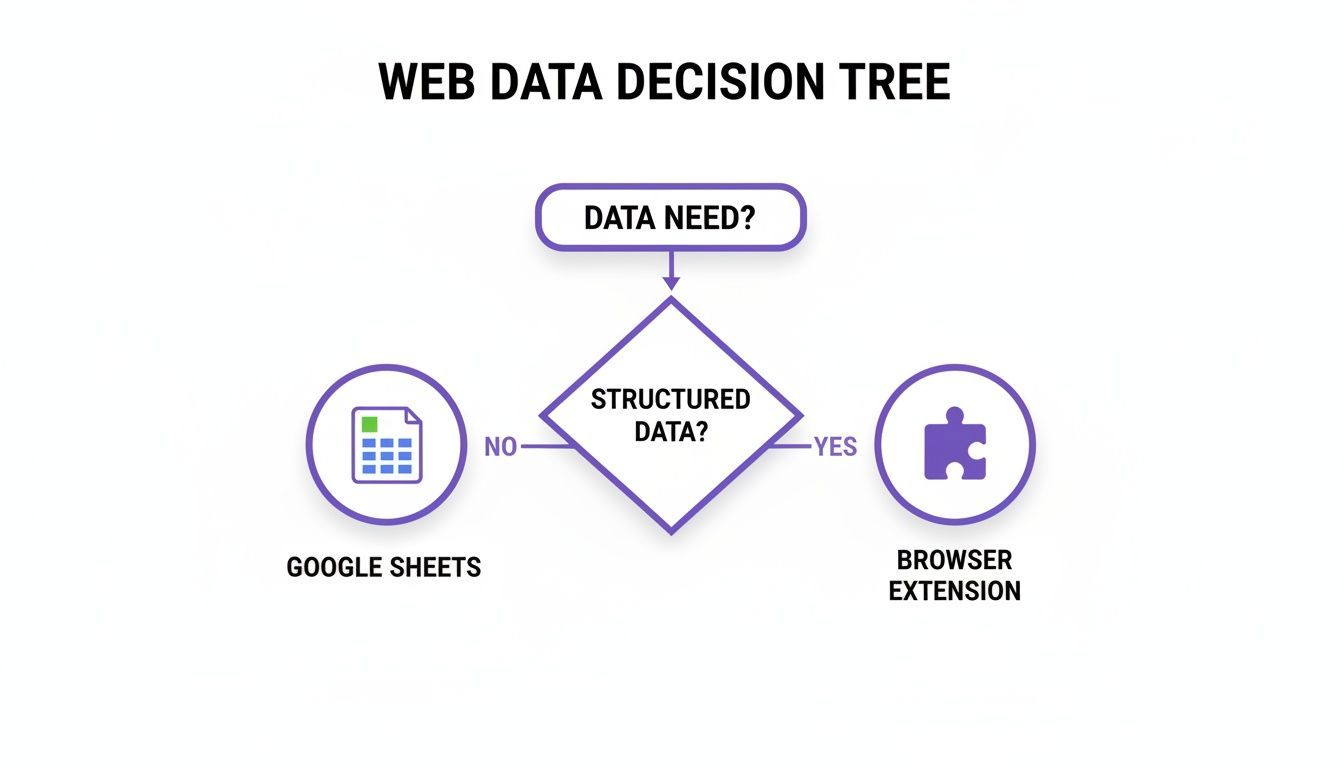
1. Google Sheets for Simple Tables
Google Sheets includes functions that can import some website data directly into a spreadsheet.
For example:
=IMPORTHTML("URL", "table", 1)
This can import a conventional HTML table from a public webpage.
Google Sheets also supports:
=IMPORTXML("URL", "XPath_query")
This can extract selected page elements when the website is static and publicly accessible.
Best for:
- Simple public tables
- Static lists
- Pages with consistent HTML
- Lightweight spreadsheet workflows
Limitations:
- Often fails on JavaScript-rendered pages.
- May not work on login-protected content.
- Requires some XPath knowledge for IMPORTXML.
- Can break when the page structure changes.
- Does not work well with interactive profile cards or infinite scroll.
2. Copying a Simple HTML Table
If a webpage contains a standard HTML table, you may be able to select the table directly and paste it into Excel or Google Sheets.
You can also inspect the page:
- Right-click the table and choose “Inspect.”
- Locate the
<table>element. - Copy the table element or its text.
- Paste the result into a spreadsheet or HTML file.
This method is useful for a small one-time task, but it is not practical for long lists, card layouts, or dynamic content.
3. Browser Extensions With Table Detection
Extensions such as Instant Data Scraper are useful when the page contains conventional repeated rows, tables, or grids.
Best for:
- Simple tables
- Consistent product grids
- One-time page exports
- Pages with clear repeated structures
Limitations:
- May fail on inconsistent card layouts.
- Can miss JavaScript-loaded records.
- May detect the wrong repeated element.
- Provides less semantic understanding of fields such as name, role, company, or profile URL.
4. AI-Assisted Browser Extraction
AI-assisted tools such as ProfileSpider interpret the loaded page and attempt to identify the meaning of repeated fields rather than relying only on a fixed table structure.
Best for:
- Company directories
- Team pages
- Conference speaker lists
- Profile-style cards
- Search results
- People and company research
Limitations:
- The data must be loaded into the page first.
- Results should still be reviewed.
- It does not bypass CAPTCHAs, paywalls, or access restrictions.
- It is not a scheduled multi-page crawler.
5. Visual Scraping Platforms
Tools such as Octoparse and ParseHub let users build repeatable scraping workflows through a visual interface.
Best for:
- Recurring extraction
- Pagination
- Navigation between pages
- Scheduled runs
- More complex website interactions
Limitations:
- Longer setup time
- Higher learning curve
- Projects may break when the website changes
- Often more expensive than a simple browser extension
Key insight: Use the simplest method that reliably handles the page. A spreadsheet formula may be enough for a static table, while a browser extension is better for repeated listings and a visual platform is better for recurring multi-page workflows.
How to Scrape Website Tables Into Google Sheets Without Coding
If the website contains a simple public table, Google Sheets may be the quickest option.
Using IMPORTHTML
Enter a formula such as:
=IMPORTHTML("https://example.com/page", "table", 1)
The final number identifies which table on the page to import. Change it to 2, 3, or another number if the page contains several tables.
Using a CSV Export
When a browser extension creates a CSV:
- Download the CSV file.
- Open Google Sheets.
- Select File → Import.
- Upload the CSV.
- Choose whether to create a new sheet or replace the current one.
This method works for directories, contacts, companies, profiles, and other structured exports.
From CSV Export to Spreadsheet-Ready Data
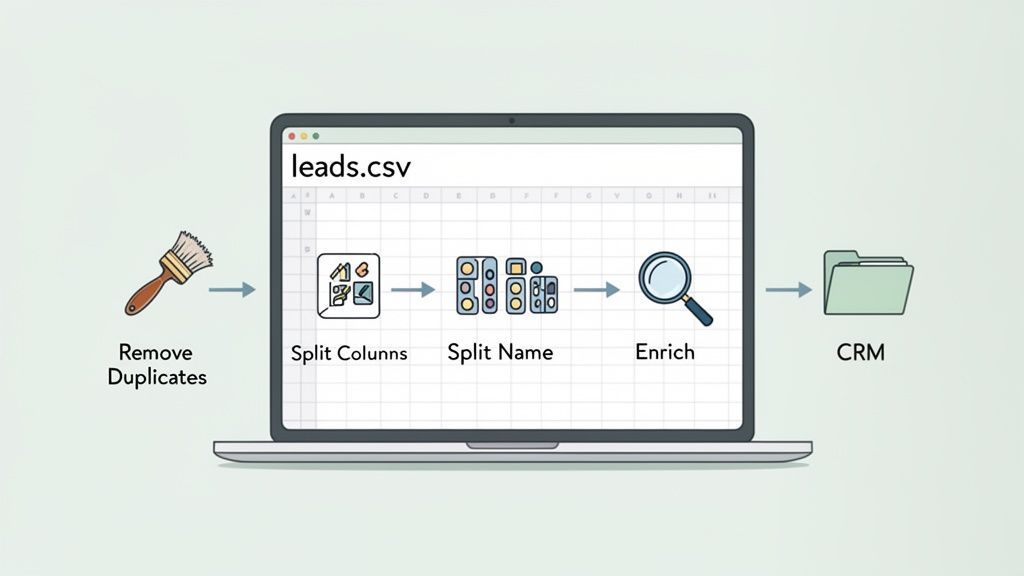
Exporting a CSV is only the first step. Before using the data for outreach, analysis, recruiting, or CRM import, perform a short quality review.
Essential Data Cleaning Tasks
- Remove duplicates: Check whether the same person, company, or listing appears more than once.
- Review missing fields: Decide whether blank values need research or can remain empty.
- Normalize company names: Keep variations such as “Acme Ltd” and “Acme Limited” consistent where appropriate.
- Standardize titles and locations: This makes filtering and segmentation easier.
- Check URLs: Make sure website and profile links belong to the correct row.
- Separate person and company details: Do not assign a general company phone number or email to an individual contact.
- Retain source URLs: Keep the original page for later verification.
Opening the CSV in Excel or Google Sheets
CSV files are plain-text files in which each row represents a record and each comma-separated value represents a field.
They can be opened in:
- Google Sheets
- Microsoft Excel
- LibreOffice Calc
- Most CRM import tools
- Database and analytics applications
If special characters or accented names appear incorrectly, import the file using UTF-8 encoding.
From a Basic CSV to an Enriched List
An initial extraction may include only the fields visible on the main page. Additional details may be available on linked company pages, personal websites, biographies, or profile pages.
With ProfileSpider, enrichment can open selected URLs and extract additional publicly available information.
A typical workflow is:
- Initial extraction: Collect names, titles, companies, links, and other visible fields.
- Save to a list: Organize the extracted records in ProfileSpider.
- Enrichment: Open selected linked pages to look for additional details.
- Review: Verify important records against the original sources.
- Export: Download the final list as CSV, Excel, or JSON.
Each URL opened for enrichment uses one credit. Enrichment does not guarantee that every missing field will be found.
For more on moving extracted data into a sales process, read our guide to feeding web data into a sales pipeline.
ProfileSpider Export and Storage Details
ProfileSpider stores saved profiles, lists, tags, and notes locally in the browser’s IndexedDB.
This means the saved lead or research database is not maintained as a cloud-hosted ProfileSpider list. However, account, billing, credit, team, AI extraction, enrichment, and email-finding functions still use the ProfileSpider backend or relevant third-party services.
Important exported lists should be backed up regularly because clearing browser data or uninstalling the extension can remove locally stored profiles and lists.
Export Options
ProfileSpider supports:
- CSV
- Excel
- JSON
- All columns or visible columns
- Custom export header labels stored in the browser
ProfileSpider does not directly sync every list into every CRM. Export the file and import it into the target system using that platform’s supported import workflow.
Scraping Data Ethically and Responsibly
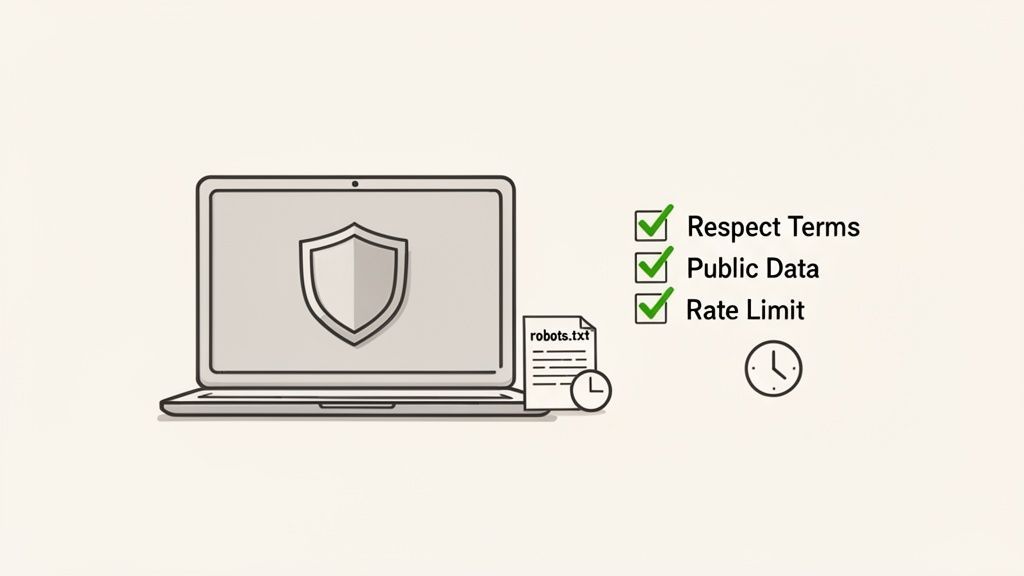
Knowing how to scrape a website to CSV without coding does not remove the need to use the data responsibly.
Before extracting data, consider:
- Whether the information is public or access-restricted
- The website’s terms and policies
- The purpose of the collection
- Whether personal data is involved
- How much data is necessary
- How the information will be stored and used
Follow the Website’s Rules
- Terms of service: Some sites restrict automated collection or commercial reuse.
- robots.txt: This provides crawler guidance but is not, by itself, a complete statement of legal permission.
- Access controls: Do not bypass CAPTCHAs, paywalls, login restrictions, or technical protections.
- Copyright and database rights: Public visibility does not automatically grant unrestricted reuse.
Focus on information that is relevant to a legitimate professional or research purpose, and avoid collecting unnecessary sensitive or private data.
Key insight: Publicly visible data can still be subject to privacy, contractual, copyright, and database restrictions. Technical accessibility is not the same as unrestricted permission.
Use a Reasonable Extraction Pace
Browser-based page extraction is usually less aggressive than a large automated crawler because it operates on pages opened by the user. Even so, repeated page loading and extraction can trigger website limits.
Use a measured workflow:
- Extract only the pages you need.
- Avoid rapid repeated retries.
- Stop when a CAPTCHA or restriction appears.
- Do not disrupt the website’s normal operation.
- Use an official API or export when one is available.
For a practical review, see our lead scraping compliance checklist.
Keep Control of the Exported Data
Once the data is exported, you are responsible for its security, retention, and use.
- Restrict access: Share the file only with people who need it.
- Retain sources: Keep source URLs so important records can be checked.
- Delete unnecessary data: Do not retain information indefinitely without a reason.
- Review outreach use: A public work email or professional profile may still be personal data.
- Back up important lists: Local browser data can be lost if the extension is removed or browser storage is cleared.
Frequently Asked Questions
Can you extract data from a website without coding?
Yes. Browser extensions, Google Sheets functions, and visual scraping platforms can extract many types of public website data without Python or other programming languages.
How do I get a CSV file from a website?
First check whether the website offers an official CSV export. If it does not, use a browser extension or no-code scraper to extract the visible records and create a new CSV file.
Can I scrape leads from directories into a spreadsheet without coding?
Yes. Open the directory, load the required listings, extract the repeated people or companies with a no-code tool, and export the results as CSV or Excel.
Can I scrape a website directly into Google Sheets?
For simple public HTML tables, use Google Sheets functions such as IMPORTHTML or IMPORTXML. For dynamic pages, directories, and profile cards, export a CSV with a browser scraper and import it into Sheets.
Can I scrape modern web applications to CSV or JSON?
Sometimes. The content must first be loaded into the browser. Pages that depend on complex interaction, virtualized lists, CAPTCHAs, or access restrictions may require a more advanced visual scraper or custom browser automation.
Does ProfileSpider scrape multiple pages automatically?
No. ProfileSpider extracts the current page. When results span several pages, navigate to each page and run a separate extraction.
Does ProfileSpider work without a login?
ProfileSpider can extract information available on the page you can access. It does not bypass login requirements or retrieve content that the website has not made available to your browser session.
Do I need Python for recurring scheduled scraping?
Not necessarily. Visual scraping platforms can schedule recurring jobs without code. However, complex, high-volume, or highly customized pipelines may still be better suited to Python, Playwright, Puppeteer, or another programmable system.