


It's a moment every sales pro, recruiter, or researcher dreads. You’re in the zone, pulling valuable data with a tool like DataMiner, and then... nothing. Errors pop up. Fields come back empty. You're left staring at a broken scraper, wondering what went wrong.
When you’re a non-technical user just trying to build a list, this is incredibly frustrating. The good news? It's usually not a complex technical failure. The problem often comes down to one simple thing: DataMiner depends on CSS selectors, which are like a fragile road map to the data on a webpage. When the website changes its layout—even slightly—that map breaks.
Let's walk through why this happens, how to fix the common issues, and introduce a one-click alternative for when you’ve had enough of troubleshooting.
So, Why Did Your Data Scraper Suddenly Break?
Think of a data scraper as a robot following a very specific map to find treasure on a website. This "map" is made up of the site's underlying code—specifically, paths called CSS selectors that point directly to the data you want, like names, job titles, or company details.
The problem is, websites are constantly changing. They aren't static pages. Developers are always pushing updates, which means your scraper's map can become outdated overnight.
Here are the most common reasons your DataMiner recipe just broke:
- Website Code (DOM) Changes: A major visual overhaul or even a minor code tweak can completely rearrange the site's structure, leaving your scraper's old directions useless.
- Dynamic Content: Many modern sites load information as you scroll or click. If your scraper runs before the data is actually visible on the page, it comes up empty-handed.
- Incorrect Selectors: The recipe you built might be pointing to the wrong CSS class or ID, either due to a mistake or a recent site update.
- Pagination & Infinite Scroll: The scraper doesn't know how to click the "Next" button or scroll down to load more results, so it stops after the first page.
- Chrome Extension Conflicts: Another extension, like an ad-blocker, might be interfering with DataMiner's ability to read the page correctly.
When your scraper fails, your first move should always be to investigate the website itself, not the tool. This decision tree can help you visualize the first few diagnostic steps.
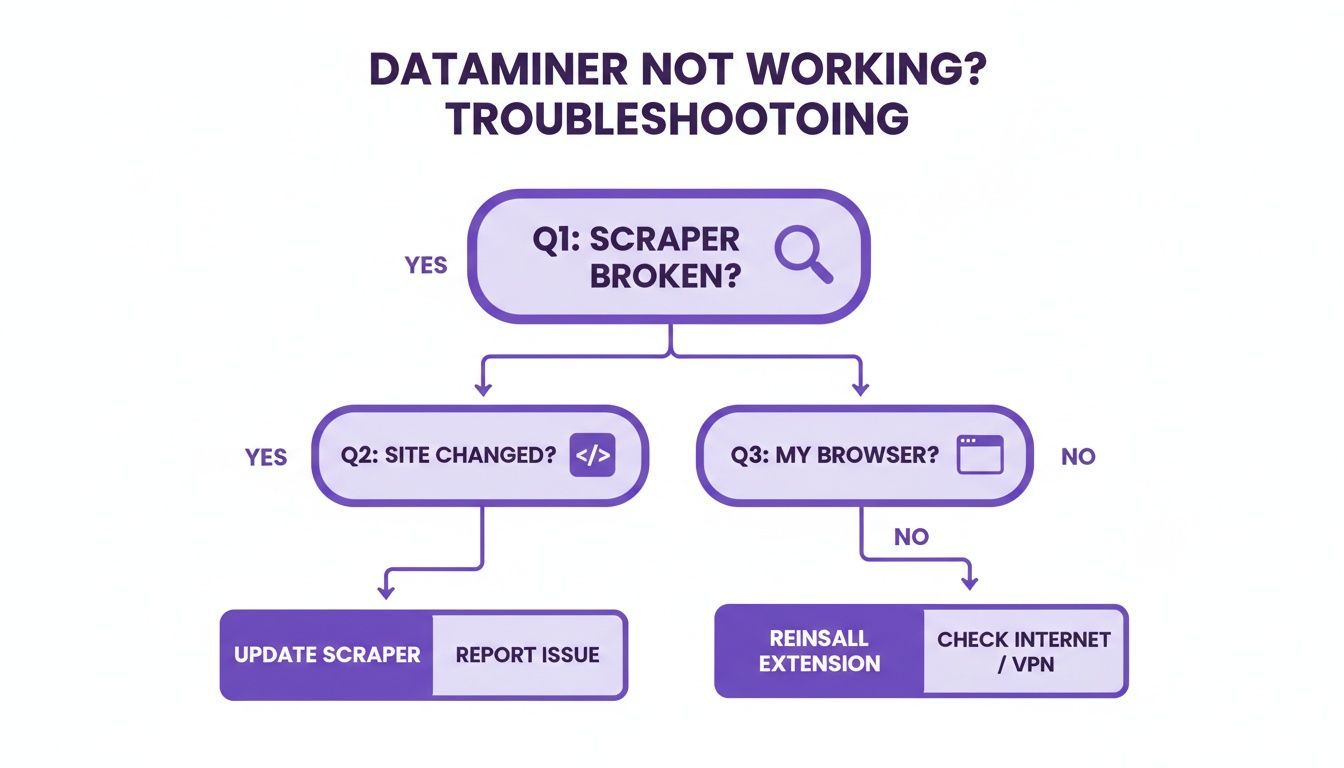
As the chart shows, a change on the target website is the most frequent reason for a failure. For a deeper dive, a good primer on troubleshooting common website issues can give you a broader perspective.
Instead of thinking your tool is broken, just assume the map is old and needs to be redrawn. With that mindset, you're already halfway to a solution.
Quick Diagnosis Checklist for DataMiner Failures
Before you dive deep into the technical weeds, run through this quick checklist. It's designed to help you pinpoint the likely cause of the problem and figure out your next step in under a minute.
| Symptom | Likely Cause | First Action to Take |
|---|---|---|
| Scraper works on Site A, but not Site B. | The issue is with Site B's structure. | Check if the recipe you're using is designed for Site B or if the site was recently updated. |
| Scraper returns no data or partial data. | The website has changed, or content is loading dynamically. | Manually scroll through the page to ensure all data is loaded before running the scraper. |
| The extension icon is grayed out or missing. | A browser permission issue or conflict with another extension. | Check extension permissions in your browser settings and try disabling other extensions. |
| You get an "Authentication" or "Credit Limit" error. | You've hit a rate limit or run out of your plan's credits. | Log into your DataMiner account to check your usage and subscription status. |
| The scraper works in Chrome but not in Firefox (or vice-versa). | This points to a browser-specific problem. | Update your browser to the latest version or try clearing the cache and cookies. |
This table should be your go-to reference. It covers the vast majority of scraping hiccups and will save you from going down a rabbit hole of unnecessary fixes.
Fixing Broken Website Selectors
So, your trusty scraper stopped working and your "dataminer not working?" search led you here. Nine times out of ten, the problem is a broken website selector. It's the most common—and frustrating—part of this game.
Think of your DataMiner recipe like a set of GPS coordinates for data on a webpage. When a website gets a facelift—even a tiny one—it’s like all the street names and building numbers suddenly change. Your old directions are now completely useless. This is the constant battle of selector-based scraping.
The website’s code, its Document Object Model (DOM), is the map. Your recipe depends on specific landmarks in that code, like a class name (class="job-title") or an ID (id="contact-info"), to pinpoint the data. But when a developer pushes an update, those landmarks can get renamed or disappear entirely, and your workflow breaks instantly.

Identifying the Changes
Alright, time to put on your detective hat. You don't need to be a coding genius, but you do need to know how to peek under the hood of a website using your browser's "Inspect" tool. It's easier than it sounds.
Just go to the webpage, right-click on the piece of data you want to grab (like a person's name), and choose "Inspect" from the dropdown menu. This pops open a panel showing you the site's raw HTML, with the exact line you clicked on highlighted. Look for the class or id attributes that define that element. Now, compare that to what's in your DataMiner recipe. If they don't match, you've found your smoking gun.
Rebuilding Your Recipe
Once you've spotted the new selector, the next step is to update your recipe. Your goal here isn't just to fix it for today but to make it a little more resilient for the future. Instead of latching onto a super-specific selector that could change again next week, try to find a more stable parent element that holds the info you need.
- Find the New Element Name: In that "Inspect" panel, find the new class or ID for your data point. It might have been tweaked from
profile-nameto something likeuser-fullname. - Update Your Recipe: Jump into your DataMiner recipe's settings. Find the old, broken selector and swap it out with the new one you just found.
- Test and Refine: Run the updated recipe on a single page to make sure it's pulling the right info. You might need to adjust it a couple of times to get it perfect.
This whole cycle of inspecting, identifying, and updating selectors is a core skill for anyone using tools like DataMiner. But let's be honest, it highlights the constant upkeep required. Every time a website updates, you could be back to square one, turning a simple data grab into a recurring maintenance headache.
If you find yourself stuck in this inspect-and-fix loop, it's worth knowing there are other ways. Some people dive into coding their own solutions, and you can learn how in our guide on how to build a simple web scraper with Python, but that's a big technical leap.
For most non-developers, the real game-changer is a tool that isn't so dependent on these fragile selectors. This is where modern AI-driven tools have a massive advantage, as they're built to adapt to website changes on their own.
Troubleshooting Browser and Extension Conflicts
So, you’ve confirmed the website's code hasn't changed. The next place to look is closer to home: your browser. When DataMiner isn't working, it’s easy to assume the problem is with the site or the recipe, but often the real issue is lurking in your own browser environment.
Your browser is a complex ecosystem. Conflicts can pop up out of nowhere thanks to a cluttered cache, a recent update, or another extension simply not playing nice with others.
These local issues are sneaky—they can look exactly like selector problems, sending you down the wrong troubleshooting rabbit hole. Before you waste any more time digging through website code, run through these simple browser checks. They often provide a surprisingly quick fix.
Test in an Incognito Window
The single fastest way to diagnose a local conflict is to fire up an Incognito window (in Chrome) or a Private window (in Firefox/Edge). This mode gives you a clean slate to work with by temporarily disabling most other extensions and ignoring your cache and cookies.
If your recipe suddenly works perfectly in Incognito mode, you’ve hit the jackpot. The problem is definitely on your end, and it’s almost always one of three things:
- A Conflicting Extension: Another tool, often an ad-blocker, privacy guard, or even another scraper, is interfering with how DataMiner reads the page.
- Outdated Browser Cache: Your browser is stubbornly holding onto an old, broken version of the website’s code, even if the site itself has been updated.
- Corrupted Cookies: It happens. Website-specific cookies can get scrambled and cause all sorts of unexpected glitches.
Clear Your Cache and Cookies
Once the Incognito test points to a local problem, your first move should be to clear your browser's cache. This simple action forces your browser to download the absolute freshest version of the webpage, ensuring your scraper is analyzing the current code, not some ghost of pages past.
Pro Tip: You don't have to nuke your entire browsing history. In Chrome's settings (
Clear browsing data), you can choose to clear only "Cached images and files" and "Cookies and other site data". Better yet, you can set the time range to something specific, like the "Last 24 hours," to avoid logging out of everything.
This step is the digital equivalent of "turning it off and on again," and you'd be amazed how often it solves weird extension issues.
Check Extension Permissions and Conflicts
Finally, make sure DataMiner actually has the permissions it needs to do its job. Right-click the DataMiner icon in your toolbar, go to "Manage extension," and double-check that it has access to the sites you're trying to scrape.
If the problem is still there, it’s time to hunt down the conflicting extension. It's a bit tedious, but it works: disable all your other extensions, then re-enable them one by one, testing your DataMiner recipe after each one. This process of elimination will expose the troublemaker. The way extensions interact can be complex and unexpected, and you can learn more about these kinds of issues by reading about why Chrome extensions get blocked on LinkedIn.
Handling Pagination and Infinite Scroll Issues
Scraping data from a single, static page is one thing. But what happens when the information you need is spread across dozens of pages or buried in a social media feed that just keeps on scrolling? This is a classic stumbling block and a huge reason people get stuck wondering why their scraper suddenly stopped working.
A lot of scrapers, especially those built from simple recipes, break down the moment they need to click a “Next” button. It's a common failure point. The tool simply can't find or interact with the pagination link, leaving you with only the first page of results. A real headache.
Then you have sites with infinite scroll—think Twitter feeds, LinkedIn search results, or endless e-commerce listings. These are a whole different beast. Data only loads as you physically scroll down the page, so if your scraper just analyzes the initial page load, it misses everything that hasn't appeared on the screen yet.
Getting Your Scraper to Navigate Pages
To handle standard pagination, you basically need to teach your scraper how to find and click that "Next" button on its own. Inside a tool like DataMiner, you can define a navigation action that specifically targets the link leading to the next page of results.
You'll have to pop open your browser's "Inspect" tool to find the unique CSS selector for the "Next" button or link. Once you plug that into your recipe, the scraper will finish one page, click the link, and repeat the process automatically until it runs out of pages. This simple step turns a tedious, multi-page manual task into a set-it-and-forget-it workflow.
Tackling Infinite Scroll
Infinite scroll demands a different strategy entirely. Since there’s no "Next" button, you have to mimic what a real user does: scroll down the page.
- Set up an "Auto-Scroll" Action: Most advanced scrapers have a step you can add to your recipe that automatically scrolls down the page, either by a set amount or to the very bottom.
- Don't Forget Delays: This is critical. You have to add a pause after each scroll. This gives the website enough time to actually load the new content before your scraper tries to grab it. If you don't, you'll just be scraping empty space.
- Tell It When to Stop: A scraper will scroll forever if you let it. You must define a stop condition, like telling it to stop after 10 scrolls or once it detects that no new content has loaded after the last scroll.
Honestly, getting the navigation right for these dynamic elements is where many people get frustrated and give up. The constant need to tweak, test, and re-configure these settings for every new website highlights the manual effort that can creep back in. If you're looking for a simpler approach, checking out guides on automating web scraping with no-code tools can open your eyes to more modern, less hands-on alternatives.
When Fixes Fail: The Limits of Selector-Based Scraping
So you’ve tried everything. You’ve inspected elements, tweaked selectors, cleared your browser cache, and maybe even lost a bit of sleep wrestling with pagination settings. But DataMiner still isn’t working.
Take a breath. Your frustration is completely valid. At this point, the problem probably isn’t your process—it’s the fundamental limitation of the tool itself.
Tools like DataMiner are built on a fragile foundation: CSS selectors. This approach is reactive by nature. You’re locked in a constant cat-and-mouse game where you’re always just one website update away from another broken workflow. Every time a developer pushes a change to a site's layout, your carefully built recipe shatters, and you're right back at square one.
This cycle of fixing and re-fixing quickly turns into a massive time sink. What should have been a quick data pull becomes a recurring maintenance headache, and the time you spend troubleshooting starts to outweigh the value of the data you’re trying to get.
The Rise of Anti-Scraping Technology
It’s not just you. Modern websites are smarter and more defensive than ever. They actively use sophisticated tech specifically designed to identify and block scrapers. For a non-technical user trying to get around these defenses with a simple selector-based tool, it’s a losing battle.
You're no longer fighting simple code changes. You’re up against:
- Dynamic Code Obfuscation: Websites intentionally scramble their HTML and CSS class names on the fly, making it nearly impossible to pin down a stable selector. The class name that works today might be a random string of characters tomorrow.
- Advanced CAPTCHAs: Forget the simple "I'm not a robot" checkboxes. Sites now use invisible challenges that analyze your browser's behavior to detect and block automation without you even realizing it.
- IP Blocking and Rate Limiting: If a site detects too many rapid-fire requests coming from your IP address, it can temporarily—or permanently—block you, shutting down your efforts completely.
The True Cost of Downtime
When a data pipeline breaks, it’s more than just an inconvenience; it’s a real business bottleneck. Getting data automatically is now standard practice for major companies—in fact, the global data mining market is driven by businesses integrating these tools into core processes.
A single broken scraper can cause a ripple effect. Delays in data collection create immediate backlogs for the sales, recruiting, and marketing teams who rely on that information.
Here’s the bottom line: selector-based tools force you to think like a developer. But your goal isn’t to debug code. Your goal is to get data for your real job—whether that’s finding leads, sourcing candidates, or doing market research.
When you've exhausted all the fixes, it isn't a sign of failure. It's a signal that you've hit the ceiling of what this kind of technology can realistically do. It’s time to stop fighting the symptoms and start looking for a smarter, more resilient way to get the data you need.
The One-Click AI Alternative to Manual Fixes
Instead of constantly wrestling with broken recipes, what if your tool could just understand the page? The cycle of fixing selectors is a massive time sink, pulling you away from high-value tasks like building lead lists or sourcing candidates. This is exactly where a fundamental shift in technology offers a much better way forward.
A modern, no-code alternative like ProfileSpider is built for professionals who need results, not another technical puzzle to solve. Unlike tools that depend on fragile CSS selectors, it uses AI to analyze a webpage’s structure and context. It intelligently figures out what looks like a profile—a name, title, company, and contact details—all on its own.
How AI Overcomes Selector Fragility
This AI-driven approach is far more resilient to website changes. Where a traditional scraper breaks because a <div> class was renamed, ProfileSpider adapts because it understands the meaning of the data. The AI recognizes a job title is a job title, regardless of the specific code used to display it.
It's a huge shift in approach. When you've had enough of manual fixes, leveraging Artificial Intelligence solutions can offer a more robust and adaptive path than traditional scraping. Think of it as the difference between following a rigid, outdated map and having a smart guide who can find the destination no matter how the roads have changed.
A Simpler, More Reliable Workflow
The workflow becomes refreshingly simple. Instead of digging into the code and tweaking recipes, you just follow two steps:
- Head to any profile page—a LinkedIn search result, a company "About Us" page, or an event speaker list.
- Click the ProfileSpider icon in your browser.
That's it. The AI scans the page, identifies all the profiles it sees, and pulls the structured data into a clean list for you.
The interface instantly shows you the extracted profiles, letting you manage or export them without wrestling with any complicated setup.
This process transforms data collection from a technical chore into a one-click action. It’s the perfect fallback when other tools fail and a powerful primary tool for anyone who values speed and reliability over constant maintenance.
To see exactly how this works under the hood, check out our complete ProfileSpider deep-dive, which breaks down the technology behind the one-click extraction. For non-technical users, it means more time spent using data and less time fighting to get it.