


When your entire workflow relies on automation, experiencing an issue with Phantombuster can feel like hitting a brick wall. It can bring your lead generation and data collection to a complete standstill.
From my experience, the problem almost always boils down to one of a few usual suspects: expired session cookies, sudden website structure changes, or hitting invisible platform limits. Tackling these core areas first is always the quickest path to getting your Phantoms back up and running.
Your First Look at Common Phantombuster Issues
The frustration is real when a scheduled Phantom fails—especially when your lead generation pipeline depends on it. Instead of randomly poking around and hoping for the best, it’s much smarter to start with a quick diagnosis of the most common failure points.
Think of this as your initial troubleshooting checklist before you start diving into the more complex, time-consuming fixes.
The causes usually fall into one of four buckets:
Session & Local Problems: This is, by far, the most frequent culprit. An expired session cookie simply means Phantombuster can no longer log in and act on your behalf. Easy fix, but it trips people up all the time.
Phantom Configuration: A simple misstep in the setup can be the issue. Maybe you’ve run out of execution time on your plan, the settings are off, or you’re using a proxy that got flagged.
Target Website Changes: Social media sites and other platforms are notorious for tweaking their code without warning. These silent updates can break a Phantom overnight, meaning it needs an update from the Phantombuster team to work again.
Account & Platform Limits: This one is sneaky. If you’re too aggressive, you might exceed a platform's rate limits (like viewing too many LinkedIn profiles too quickly). This can trigger a temporary block or a CAPTCHA, which your Phantom can't solve.
This little decision tree gives you a great visual for narrowing down the cause of your problem in seconds.
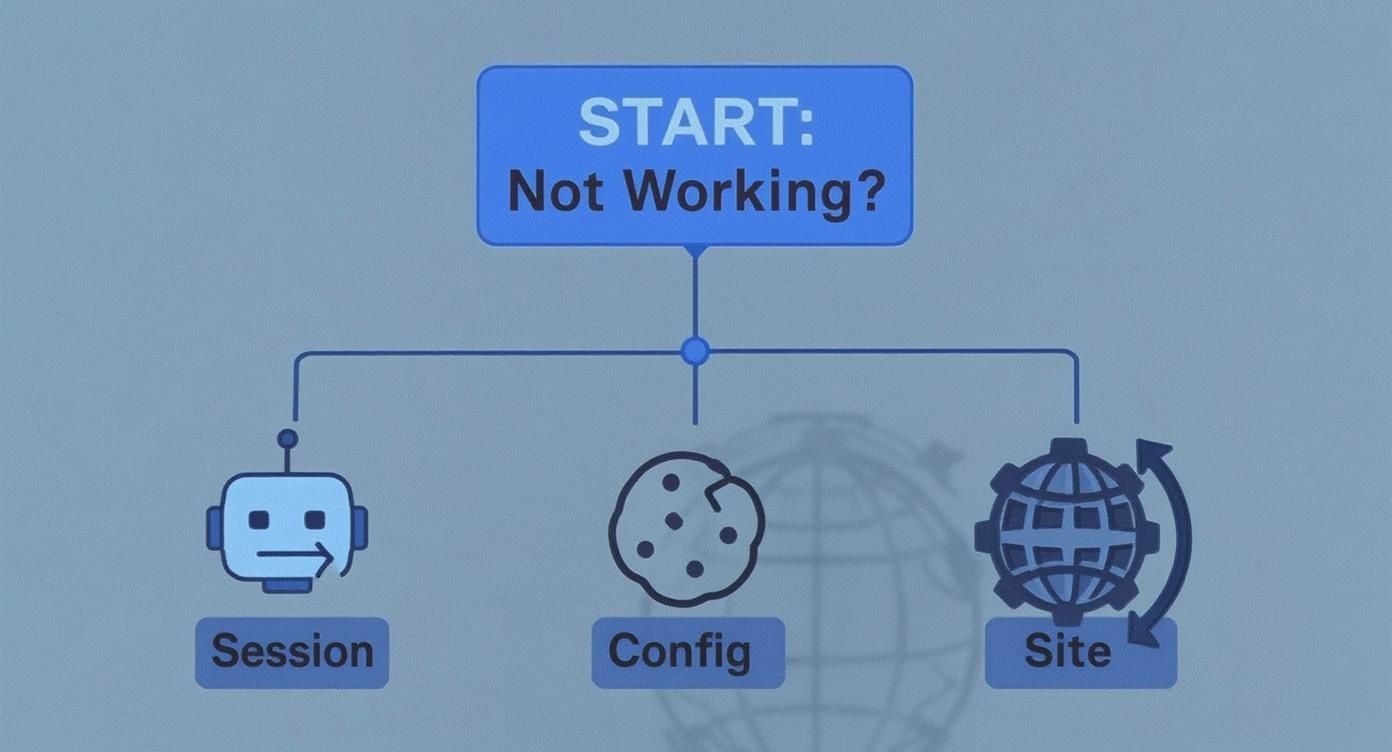
As the flowchart shows, session-related issues are the first and most common thing to check. After that, you move on to configuration and then external site problems. Following this order will save you a ton of time and headaches.
And if you're running into similar issues with other tools, it might be a broader problem. We put together a guide that covers why a general data scraper is not working, which provides some wider context that can be really helpful.
Phantombuster Quick Troubleshooting Checklist
Before you spend hours digging into logs or contacting support, run through this quick checklist. It covers the most common symptoms and points you toward the fastest potential fix.
| Symptom or Error Message | Most Likely Cause | Immediate Action to Try |
|---|---|---|
| "Session cookie expired" or login errors | Expired or invalid session cookie for the target site. | Re-install the Phantombuster browser extension and grab a fresh cookie. |
| Phantom launches but extracts no data or 0 results. | Configuration error or a recent website update. | Double-check your Phantom setup and input URL. Look for recent site changes. |
| "Rate limit exceeded" or CAPTCHA errors | The Phantom is running too aggressively for the target platform. | Reduce the number of actions per launch and increase the delay between launches. |
| Phantom fails immediately upon launch. | A critical configuration issue, like a bad proxy or incorrect input. | Review every setting in the Phantom's configuration, especially the proxy setup. |
| Phantom worked yesterday but is failing today. | The target website's structure has likely changed. | Check the Phantombuster status page or community forums for known issues. |
This table isn't exhaustive, but in my experience, it will solve your problem 80% of the time. Now, let’s dig into the step-by-step solutions for each of these categories.
First Things First: Check Your Local Setup & Session
Before you dive down the rabbit hole of Phantom configurations or start pointing fingers at a website update, let's start with the basics. From my experience, the most common reason a Phantom suddenly stops working is something surprisingly simple on your own machine.
The number one culprit? An expired session cookie.
Think of a session cookie as a temporary hall pass for the internet. When you log into a site like LinkedIn, it hands your browser this pass to prove you're authenticated. PhantomBuster essentially borrows this pass to run automations as you. But these passes are designed to expire for security reasons—sometimes in a few hours, sometimes after a few days. Once it expires, PhantomBuster's access is cut off, and your automation fails.
Re-Authenticating Your Session
Getting a fresh "hall pass" for PhantomBuster is usually a quick fix.
Log Out and Log Back In: Simple as it sounds. Manually log out of the target website (LinkedIn, X, etc.) in your browser, then log right back in.
Use the PhantomBuster Extension: You'll need their Chrome or Firefox extension installed for this next part. It's how the tool grabs the cookie.
Reconnect Your Session: Once you're logged back into the site, head to your Phantom's setup page. Hit the "Connect to..." button, and the extension will grab that new, active session cookie.
This simple reset solves a huge chunk of initial errors. If you're running into constant session issues, particularly with LinkedIn, our guide on troubleshooting why your LinkedIn automation is not working has some deeper insights you'll find helpful.
Looking for Local Interference
If a fresh cookie didn't do the trick, it's time to check for interference from your own browser or network. Other software can unknowingly block the connections PhantomBuster relies on.
Here’s what to look for:
Ad-Blockers and Browser Extensions: Overly aggressive ad-blockers or privacy extensions can sometimes break the scripts PhantomBuster uses to navigate a webpage. Try disabling them one by one and running the Phantom again. It’s a classic "process of elimination" game.
Corporate Firewalls or VPNs: Are you working on a company network? It’s very common for corporate firewalls to block services they don't recognize. A VPN can also cause problems by routing your traffic through another country, creating a mismatch with your session cookie's location and tripping the website's security alarms.
Key Takeaway: Local problems like expired cookies and extension conflicts are the low-hanging fruit of troubleshooting. Always start here. Systematically ruling out these simple causes will save you a ton of time and frustration before you start exploring more complex issues.
Diving Into PhantomBuster’s Settings and Account Limits
So, you’ve tried the local fixes and cleared your session cookies, but your Phantoms are still stuck. The next stop on our troubleshooting tour is inside your PhantomBuster account itself. More often than not, the automation isn’t actually broken—it’s just hit a ceiling you didn’t know was there.
For sales pros and recruiters trying to scale up, these built-in limits are a super common source of confusion.
The two usual suspects here are your execution time and your Phantom slots. Every PhantomBuster plan gives you a set amount of monthly execution time, which is just the total hours your automations can be actively running. If you burn through that quota mid-month, everything grinds to a halt until your plan resets.
It’s the same story with "slots." Your plan determines how many Phantoms you can run at the same time. If all your slots are busy with other automations, any new Phantom you launch will just sit in a queue, looking like it’s broken when it’s really just waiting its turn.
Check Your Dashboard for Limits
You can see exactly where you stand right on your PhantomBuster dashboard. Look for the usage meters that show your remaining execution time and how many slots are currently active. Getting a handle on these is the key to a smooth, predictable workflow.
Pace your launches: Don't run everything at once. Stagger your Phantoms throughout the day so you're not hogging all your slots.
Be efficient: Make sure your inputs are clean. A Phantom scraping 1,000 junk profiles is a massive waste of precious execution time that could be spent on real leads.
Know when to upgrade: If you’re constantly hitting your limits, that’s a good sign. It means your outreach is working and you’ve simply outgrown your current plan.
This is a recurring theme in user feedback. While around 60% of users give PhantomBuster a perfect 5-star rating, a decent chunk runs into headaches with session stability or random blocks. These issues are often tied directly to trying to scale campaigns beyond what their plan can handle. If you want to dig deeper into how the plans stack up, you can find more details in this comprehensive review.
The Critical Role of Proxies
Beyond your account limits, the other big showstopper is a bad proxy. A proxy is supposed to be your digital disguise, masking your server's IP to make your automation look like it's coming from a regular person. The problem is, a cheap or flagged proxy is a one-way ticket to getting blocked.
If you ever see an error message like "Can't connect through this proxy," you've found your culprit. This usually means the proxy's IP address has been blacklisted by the site you're targeting (like LinkedIn), or you've simply entered the wrong credentials.
Pro Tip: When you’re working with sensitive platforms, don't cheap out. Always invest in high-quality residential proxies. These IPs are linked to real home internet connections, making them almost impossible to detect compared to datacenter proxies. They're essential for mimicking real human behavior and keeping your accounts safe.
When the Target Website Is the Problem
You’ve checked everything. Your session cookie is active, the settings are dialed in, and you’re well under your account limits, but your Phantom still fails. It's a frustrating spot to be in, but more often than not, the problem is completely out of your hands.
The real culprit? The target website changed something.
Social media platforms are in a constant cat-and-mouse game with automation tools. They’re always tweaking their site structure, updating security protocols, or changing the underlying HTML to block scraping. A tiny change to a button's code or a shift in the page layout can break a Phantom overnight, even if it was running perfectly just yesterday.
How to Spot a Website Update
Knowing the signs of a site-wide update can save you hours of pulling your hair out. If you’re seeing any of these, the website is almost certainly the issue:
Sudden, Widespread Errors: Your once-reliable Phantom is now spitting out errors like "Cannot find element" or "Page structure not recognized."
A Flood of CAPTCHAs: The platform is suddenly throwing up CAPTCHA challenges left and right, which the automation can't get past.
New Login Screens: Your Phantom gets stuck on a login or verification page it never used to encounter.
These problems are especially common on LinkedIn, which is notoriously aggressive about blocking automation. If you've noticed your tools getting flagged more often, it’s worth understanding why some Chrome extensions get blocked on LinkedIn and how the game is played.
Your First Move: Stop the Phantom immediately. Don't keep running it. Head straight to PhantomBuster's official status page or their community forums. If other users are reporting the same problem, you’ve got a confirmed site update on your hands. At this point, all you can do is wait for the PhantomBuster team to push a fix.
This constant back-and-forth is often a reaction to aggressive automation. While research shows 22% of sales professionals use tools like PhantomBuster for lead generation, overly aggressive campaigns are a primary trigger for platforms to tighten their defenses. This is especially true for sites with strict daily limits, leading to failures that users mistake for the tool simply "not working." You can find more data on how AI-driven prospecting is used by sales teams in this study.
When an external change like this disrupts your workflow, it shines a spotlight on the core weakness of cloud-based scrapers. They are entirely dependent on their developers to keep pace with relentless site updates. This dependency can create serious downtime for sales and recruiting teams who rely on a steady flow of real-time data.
Frustrated by Failing Automations? A Simpler, One-Click Alternative
When your cloud automation tool goes down, your whole workflow grinds to a halt. You end up in a constant loop of checking session cookies, worrying about proxy health, and waiting for developers to patch whatever script just broke.
If "PhantomBuster not working" is a phrase you're tired of searching for, it might be time for a simpler approach.
This is where a modern, no-code tool like ProfileSpider comes in. Instead of relying on complex cloud servers and tricky configurations, ProfileSpider works as a simple Chrome extension. It runs locally in your browser, using your own active session to pull data safely and reliably.
Why a Local, No-Code Approach Is More Reliable
This "local-first" model sidesteps the most common reasons cloud scrapers fail, which is a game-changer for sales pros and recruiters.
No More Expired Session Cookies: Since ProfileSpider uses your live browser session, you never have to copy and paste another cookie again. If you're logged into LinkedIn, it just works.
Zero Proxy Headaches: The extension uses your own IP address, so your activity looks like normal human browsing to platforms like LinkedIn. This dramatically reduces the risk of getting flagged or blocked, and you can forget about paying for expensive proxies.
Immunity to Server-Side Glitches: Your data scraping doesn't depend on a third-party server being online. Everything happens inside your browser, which puts you back in control of your lead generation.
It's always a good idea to see what else is out there, as different tools have different strengths. A good overview, like this roundup of the 12 Best LinkedIn Automation Tools, can show you the various approaches available.
One-Click Workflow vs. The Traditional Multi-Step Process
Let's compare workflows. Imagine you want to export a list of LinkedIn profiles from a search result.
The traditional method with a cloud tool involves multiple steps:
Log into your cloud dashboard.
Find and configure the right automation script.
Copy and paste the LinkedIn search URL into the configuration.
Copy and paste your latest session cookie and set up a proxy.
Schedule the launch and hope the cloud server runs it soon.
Return later to download your results.
With a modern tool like ProfileSpider, the workflow is simplified to one click:
Go to your LinkedIn search results page.
Click the ProfileSpider extension icon and hit "Extract Profiles."
That's it. The data appears instantly, ready to export. For any sales professional or recruiter, this speed and reliability are crucial. It means less time troubleshooting technical issues and more time focused on building lead lists and sourcing candidates.
This streamlined, no-code approach is a lifesaver for teams that need consistent results without an IT department on standby. To see exactly how this local-first technology works, check out this in-depth look at ProfileSpider’s capabilities.
Best Practices for Stable Automation
Fixing what’s broken is one thing, but building resilient workflows from the get-go is another game entirely. If you want to spend less time troubleshooting, a few preventative habits can make a huge difference in keeping your Phantoms running smoothly.
The absolute golden rule? Respect the platform’s rate limits. Websites like LinkedIn are always on the lookout for robotic activity. Don't crank your Phantoms up to max speed. Instead, think like a human. Configure them to run slower, schedule fewer actions per launch, and build in longer delays between runs.
Keep Your Tools Updated
Another quick win is staying on top of Phantom updates. The PhantomBuster team is constantly tweaking their scripts to keep up with website changes. An outdated Phantom is one of the most common culprits behind a sudden failure, so make sure you have auto-updates enabled or just pop in and check manually from time to time.
A solid grasp of the fundamentals can really help here. Brushing up on your understanding no-code automation will give you a much better intuition for how these tools work and why these best practices matter.
Monitor Your Automation Health
Finally, get into the habit of glancing at your Phantom logs. You don't need to be a developer to notice a pattern. Are you seeing the same warnings pop up again and again? Has your success rate dipped over the last few days? Catching these little things early lets you make small adjustments before they snowball into a total shutdown.
Key Insight: Proactive management is the secret sauce for stable automation. Slowing down your Phantoms, keeping them updated, and monitoring performance shifts you from a reactive "fix-it" mode to a preventative one that delivers consistent results.
Of course, even with the best habits, things can still go sideways. There's a reason PhantomBuster scores a 4.4/5 on G2 and a 4.5/5 on Capterra—it's a powerful tool for scaling up lead generation.
However, even positive reviews often mention a steep learning curve or occasional session instability. It’s a good reminder that challenges are just part of the process. You can see what other users are saying by digging into these detailed PhantomBuster reviews.
Frequently Asked Questions? We’ve Got Answers
When your Phantoms start acting up, it’s easy to feel like you’ve hit a brick wall. Let’s tackle some of the most common headaches you’ll run into and get you back on track.
Why Does My Session Cookie Expire So Often?
This is a big one. It feels like a PhantomBuster issue, but the truth is, the website you’re scraping (like LinkedIn) is the one expiring your session cookie for security reasons. It's a feature, not a bug, from their perspective.
To keep your sessions alive longer, always make it a habit to log into the target site manually in your browser right before you launch a Phantom. A stable, high-quality residential proxy also does wonders for maintaining session consistency. Oh, and try not to run a dozen automations from the same account all at once—that’s a huge red flag for security systems and a quick way to get your session invalidated.
Can I Get My Account Banned for Using PhantomBuster?
Let’s be direct: yes. There’s always a risk of getting your account suspended when you use automation on platforms that officially forbid it. The key is to minimize that risk so you can fly under the radar.
How do you do that? First, always respect the platform's daily action limits. Second, use a dedicated residential proxy for each account you automate. And finally, schedule your Phantoms to run during normal business hours. You want to look like a human, not a bot working 24/7. Aggressive, round-the-clock automation is the #1 reason accounts get banned.
The Golden Rule: The safest automation always mimics human behavior. If you’re running things too fast or too often, you’re practically screaming "I'm a bot!" to the platform's detection systems. That’s when the ban hammer comes down.
How Do I Know if a Website Update Broke My Phantom?
This is a classic scenario. One day your Phantom is running perfectly, the next it’s failing with errors like "Cannot find element" or strange network issues, and you haven't touched a single setting. That’s the tell-tale sign of a website update.
The website’s developers changed something in the code, and now your Phantom can’t find the buttons or fields it was programmed to look for. To confirm it’s not just you, check the official PhantomBuster status page or pop into their community forums. If a bunch of other people are suddenly reporting the same problem with the same Phantom, you can bet a site update is the culprit. At that point, all you can do is wait for the PhantomBuster team to push a fix.